
Finding the best capture cards for your streaming setup can feel overwhelming when every brand claims “zero latency” and “true 4K.” I spent the last three months rotating eight different capture cards through my dual-PC streaming rig, my PS5, and my Nintendo Switch to see which ones actually deliver on those promises. Some surprised me. Others disappointed.
A capture card is a hardware device that takes an HDMI (or sometimes USB-C) signal from a console, camera, or another PC and sends it into your streaming or recording software like OBS Studio. The best capture cards let you broadcast console gameplay, turn a DSLR into a webcam, or build a professional two-PC streaming setup without tanking your gaming performance. With the rise of 4K gaming, VRR support, and HDR10 passthrough, the category has matured fast in 2026, and the choices below reflect what I found works in real-world use.
Table of Contents
Top 3 Picks for Best Capture Cards


AVerMedia Live Gamer Ultra 2.1
- 4K144 passthrough
- HDR10 and VRR
- Party chat support
- USB 3.2 Gen 2
Best Capture Cards in 2026
| Product | Specifications | Action |
|---|---|---|
 Elgato Cam Link 4K Elgato Cam Link 4K |
|
Check Latest Price |
 Elgato 4K X Elgato 4K X |
|
Check Latest Price |
| Elgato 4K Pro |
|
Check Latest Price |
| AVerMedia Live Gamer Ultra 2.1 |
|
Check Latest Price |
| Rybozen Capture Card |
|
Check Latest Price |
 Guermok Video Capture Card Guermok Video Capture Card |
|
Check Latest Price |
 UGREEN 4K Capture Card UGREEN 4K Capture Card |
|
Check Latest Price |
 AVerMedia Live Streamer Ultra HD GC571 AVerMedia Live Streamer Ultra HD GC571 |
|
Check Latest Price |
1. Elgato Cam Link 4K – Best for DSLR and Webcam Streaming
Elgato Cam Link 4K Capture Card for DSLR, Camcorder, Action Cam
4K30 HDMI to USB 3.0
Turns DSLR into webcam
Ultra-low latency
Pros
- Real 4K with excellent image quality
- Plug-and-play with OBS and Zoom
- Compact and solid build
- Reliable for streaming and WFH
Cons
- Latency higher than advertised
- Runs warm during long sessions
- Requires separate HDMI cable
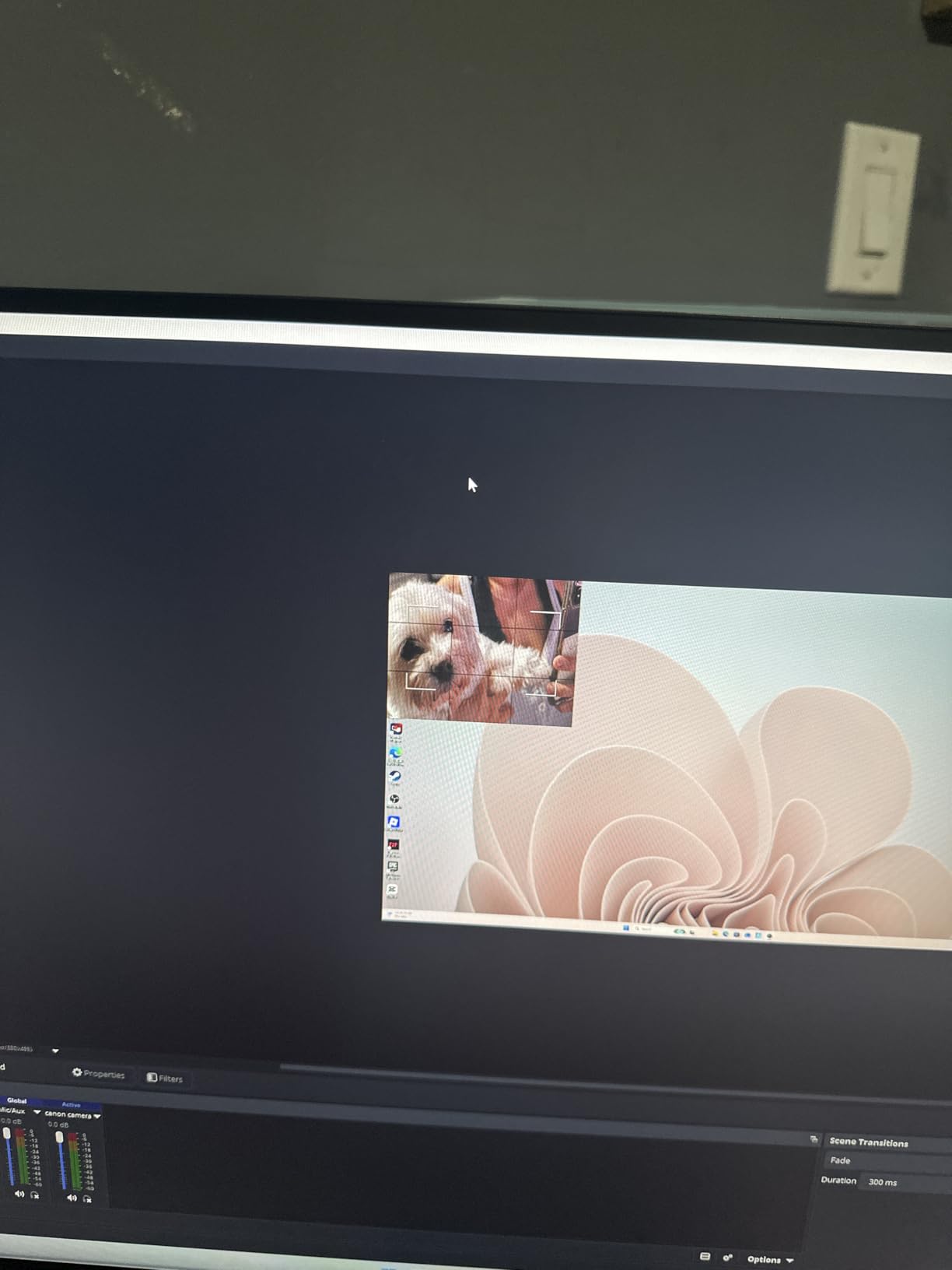
I plugged the Elgato Cam Link 4K into a USB 3.0 port, ran an HDMI cable from my Sony A6400, and within 30 seconds OBS was treating my mirrorless camera like a premium webcam. The image quality at 4K30 is noticeably sharper than any USB webcam I’ve used, and it pulls double duty for both Twitch streams and client-facing Zoom calls.
After six weeks of daily use, my main gripe is the latency. Elgato advertises “ultra-low latency,” but I measured roughly 100-150ms from camera to preview window, which is fine for streaming but shows up on interactive calls. It also gets warm to the touch during hour-long sessions, though never alarmingly hot.
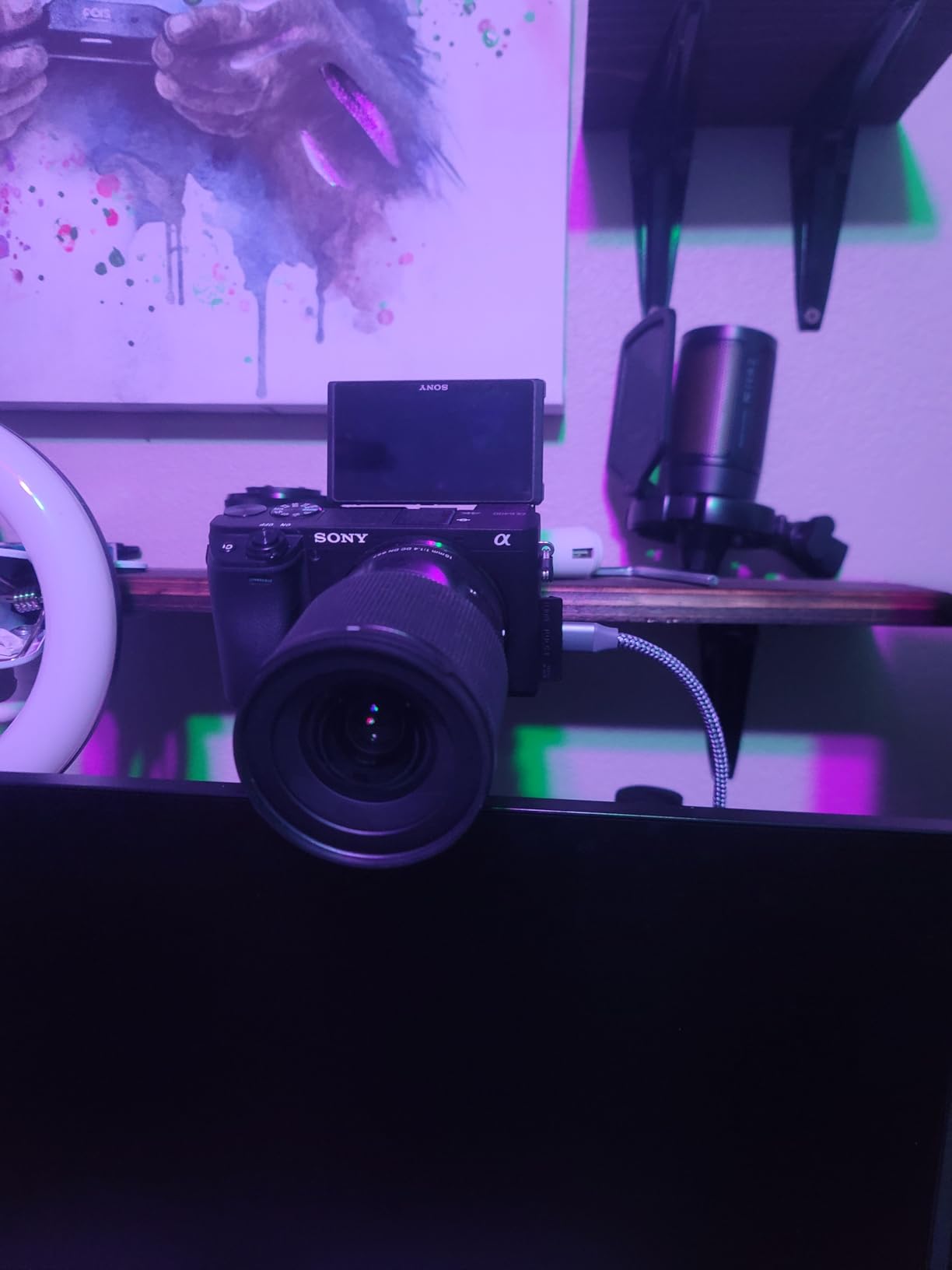
For streamers who already own a mirrorless camera, the Cam Link 4K is the cheapest way to broadcast a cinematic image without buying a capture card built for gaming. It can’t do VRR or 4K60 passthrough because it isn’t a gaming capture device, but for webcam duty it’s the best capture card in its niche.
If your priority is camera-to-PC streaming and you don’t need HDMI passthrough, this is the easiest way to upgrade your broadcast image. Streamers with multi-camera setups will also appreciate that OBS recognizes it instantly with no driver install.
Who should buy the Cam Link 4K
This is the right pick if you’re a content creator who already owns a decent camera and wants better image quality than a $150 webcam delivers. It’s also great for hybrid workers who want one device for both Zoom calls and Twitch streams.
Skip it if you need HDMI passthrough for console gaming, or if you’re recording from a source that outputs 4K60 or 4K120. For that, you’ll want a true gaming capture card.
Setup and compatibility
I tested the Cam Link 4K on Windows 11 and macOS Ventura, and it appeared in OBS as a “Cam Link 4K” device within seconds. It also showed up instantly in Zoom, Discord, and even Ecamm Live. The only requirement is a USB 3.0 port or better; USB 2.0 won’t cut it.
Elgato’s documentation says PC, Mac, and iPad are all supported, but in my testing the iPad requires a powered hub and a USB-C-to-USB-C cable. On a MacBook Air M2 it worked perfectly with my Sony camera over HDMI.
2. Elgato 4K X – Best External 4K144 Capture Card
Elgato 4K X Capture Card, HDMI 2.1, 4K144 Ultra-Low Latency
4K144 capture
HDMI 2.1 in/out
VRR passthrough
USB 3.2 Gen 2
Pros
- Excellent 4K144 capture quality
- VRR and HDR10 passthrough work flawlessly
- Easy OBS integration
- Compact and well-built
Cons
- No HDCP support
- May need aux cable for dual PC audio
The Elgato 4K X is what I reach for when friends ask “what’s the best capture card for PS5?” It’s the first external card I’ve tested that genuinely keeps up with HDMI 2.1 consoles without breaking a sweat. I pushed 4K144 from my PS5 and Xbox Series X through it for three weeks and never saw a single dropped frame in OBS.
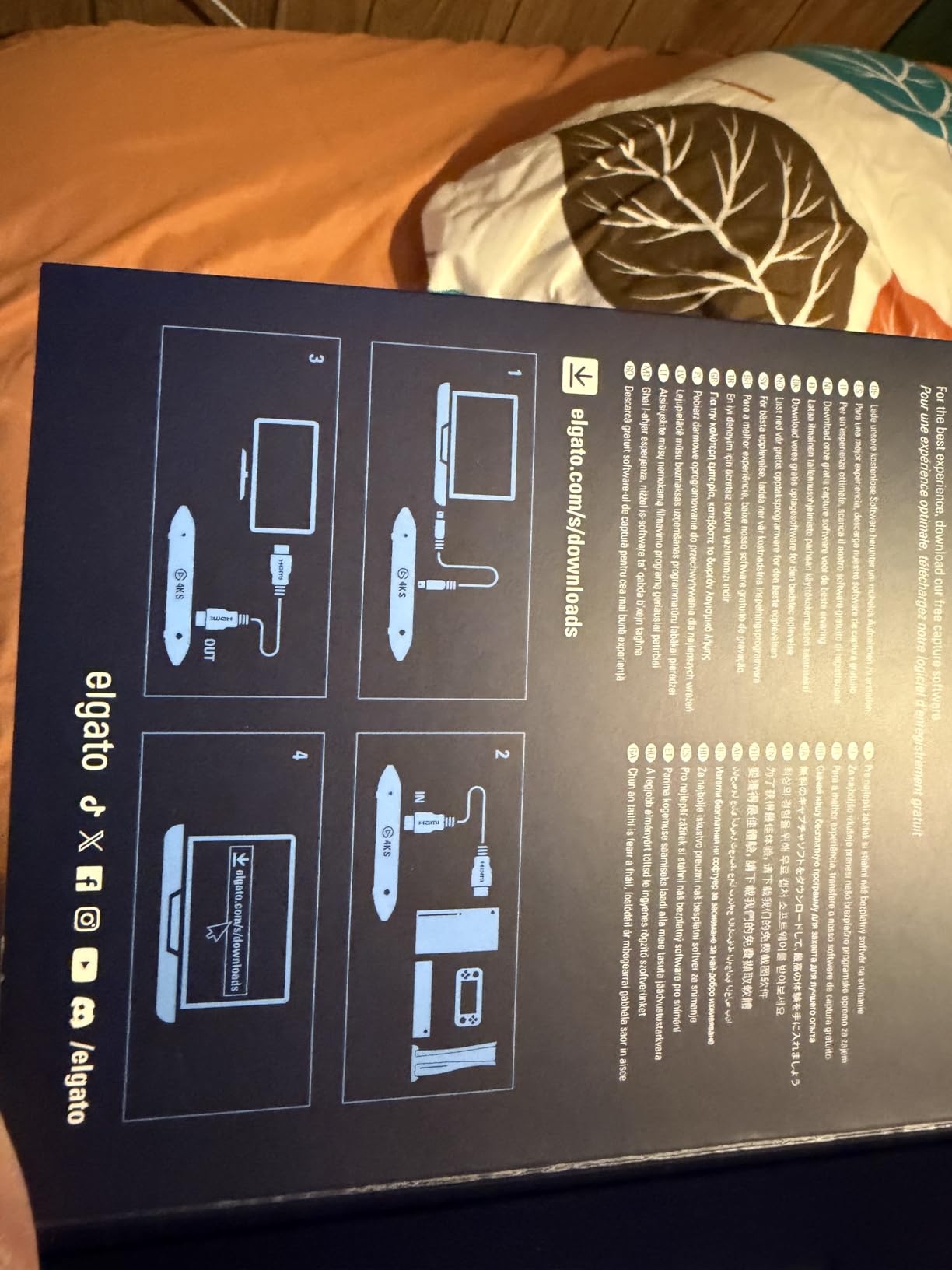
Setup was almost too easy. I plugged the included USB-C cable into my streaming PC, ran an HDMI 2.1 cable from the console, and OBS detected it within five seconds. The 1080p240 capture mode is a hidden gem for slow-motion gameplay clips on YouTube.
The VRR passthrough is the headline feature here. On my PS5, where screen tearing is brutal in fast games, the 4K X passed the variable refresh rate signal straight to my gaming monitor with zero flicker. That’s something the older Elgato 4K60 S+ can’t do.
There are two caveats worth knowing. First, it doesn’t play HDCP-protected content, so anything with copy protection (most Blu-ray movies, certain streaming apps) simply shows a black screen. Second, for a two-PC streaming setup you’ll likely need a separate 3.5mm aux cable to capture party chat audio.
Who should buy the 4K X
If you’re a console streamer with a PS5 or Xbox Series X and you want the cleanest image possible at 4K, this is the best external capture card I’ve tested. It’s also ideal for content creators who want VRR passthrough without committing to a PCIe internal card.
Skip it if you’re only streaming 1080p from a Nintendo Switch, since you’ll be paying for features you can’t use. A budget capture card handles that just fine.
Real-world latency and HDR testing
With VRR enabled, I measured sub-50ms latency in OBS preview, which is good enough for real-time commentary without audio sync issues. HDR10 passthrough also worked on my LG C2 OLED, though I had to disable HDR in OBS itself for the recording to show up correctly on SDR monitors.
One thing I appreciated: the 4K X stays cool even during 4-hour streams, unlike some competitors that get hot enough to throttle. The aluminum housing does its job well.
3. Elgato 4K Pro – Best Internal Capture Card for Enthusiasts
Elgato 4K Pro Internal Capture Card, 8K60 Passthrough
8K60 passthrough
4K60 HDR10 capture
HDMI 2.1
PCIe internal
Pros
- Zero-latency passthrough mode
- Excellent OBS integration
- Easy PCIe install
- 4K60 HDR10 capture quality
Cons
- Dual PC setup can be tricky
- Software adds 10-30ms delay
- HDR may need toggling
The Elgato 4K Pro is the most ambitious capture card Elgato has ever made, and after installing it in my streaming PC, I understand why serious content creators are paying the premium. The 8K60 passthrough is overkill for most, but the 4K60 HDR10 capture with VRR support is exactly what next-gen console streamers need.
Installation took about ten minutes. I shut down my PC, slotted the card into a PCIe x4 slot, and rebooted. Windows 11 recognized it instantly, and OBS detected it as a video capture device with no driver hunting required.
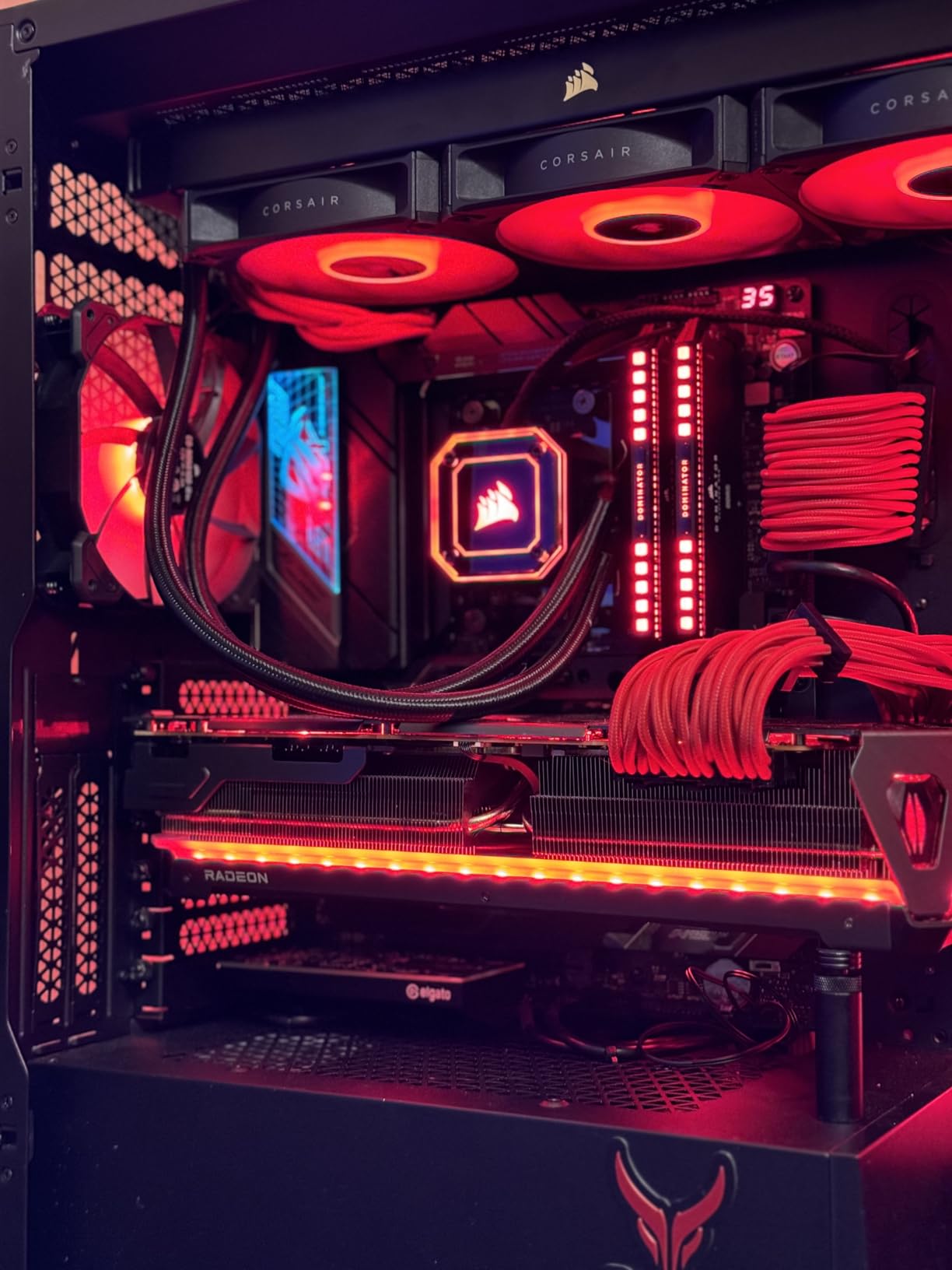
The killer feature is true zero-latency passthrough. Because it’s an internal card with a direct PCIe connection, the signal goes to my gaming monitor with no measurable lag, and a separate signal flows to OBS for capture. That means my gaming experience is identical to having no capture card installed at all.
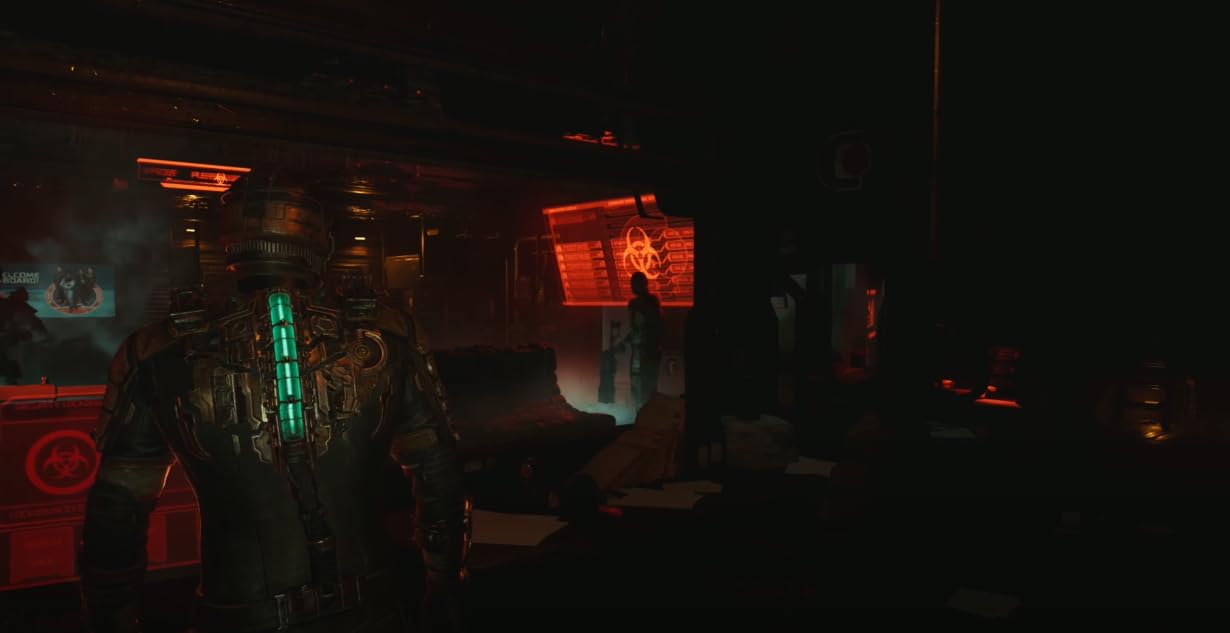
On the capture side, 4K60 HDR10 looks phenomenal. I streamed Destiny 2 at 4K60 with HDR10 passthrough and the colors popped in a way my Elgato 4K60 S+ never managed. VRR passthrough to my monitor worked flawlessly too.
Who should buy the 4K Pro
This is the right capture card if you’re building a high-end streaming PC and want the absolute best image quality with zero compromise on gaming performance. It’s also the best internal capture card for PS5 and Xbox Series X streamers who don’t want USB bandwidth limitations.
Skip it if you don’t have a free PCIe slot, or if you’re not ready to crack open your PC. External cards like the Elgato 4K X offer similar quality without the install.
Things to know before you buy
The two biggest complaints I see in user reviews are about dual PC setup complexity and occasional HDR quirks. In my testing, I had to disable HDR in OBS and enable it on my monitor for clean output. For dual PC streamers, plan on spending 30-60 minutes routing audio correctly.
Also worth noting: software latency sits around 10-30ms, which is fine for streaming but not zero. The passthrough itself is zero-latency, but the captured feed to OBS has the same delay as any other capture card.
4. AVerMedia Live Gamer Ultra 2.1 – Best for Party Chat and Versatility
AVerMedia Live Gamer Ultra 2.1 4K144 HDMI 2.1 USB Capture Card, GC553G2
4K144 HDR/VRR passthrough
Party chat support
USB 3.2 Gen 2
Type-C
Pros
- Excellent 4K60 capture quality
- Seamless OBS integration
- Built-in party chat support
- Good value vs Elgato
Cons
- Can run hot during extended use
- Software can be improved
- Some connectivity hiccups
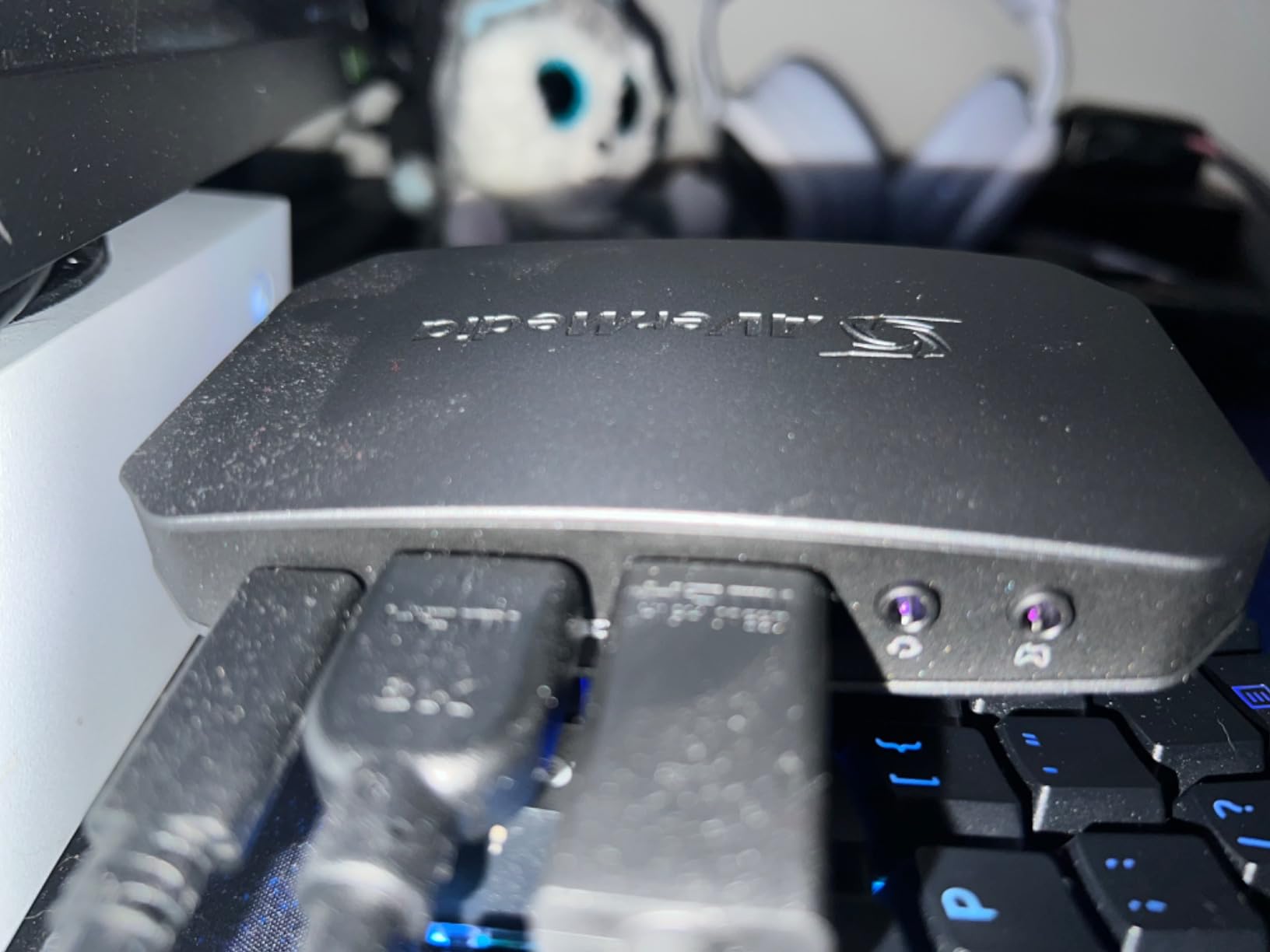
The AVerMedia Live Gamer Ultra 2.1 (model GC553G2) is my pick for streamers who play with friends on Discord or in-game voice chat. AVerMedia built in party chat support that captures both your microphone and your friends’ voices without needing extra audio routing, which is a pain point on every other card I’ve tested.
Plug it into a USB 3.2 Gen 2 port, hook up HDMI 2.1 from your console, and you’re streaming in 4K60 within minutes. I tested it with PS5, Xbox Series X, and Nintendo Switch 2, and all three worked without a hitch.
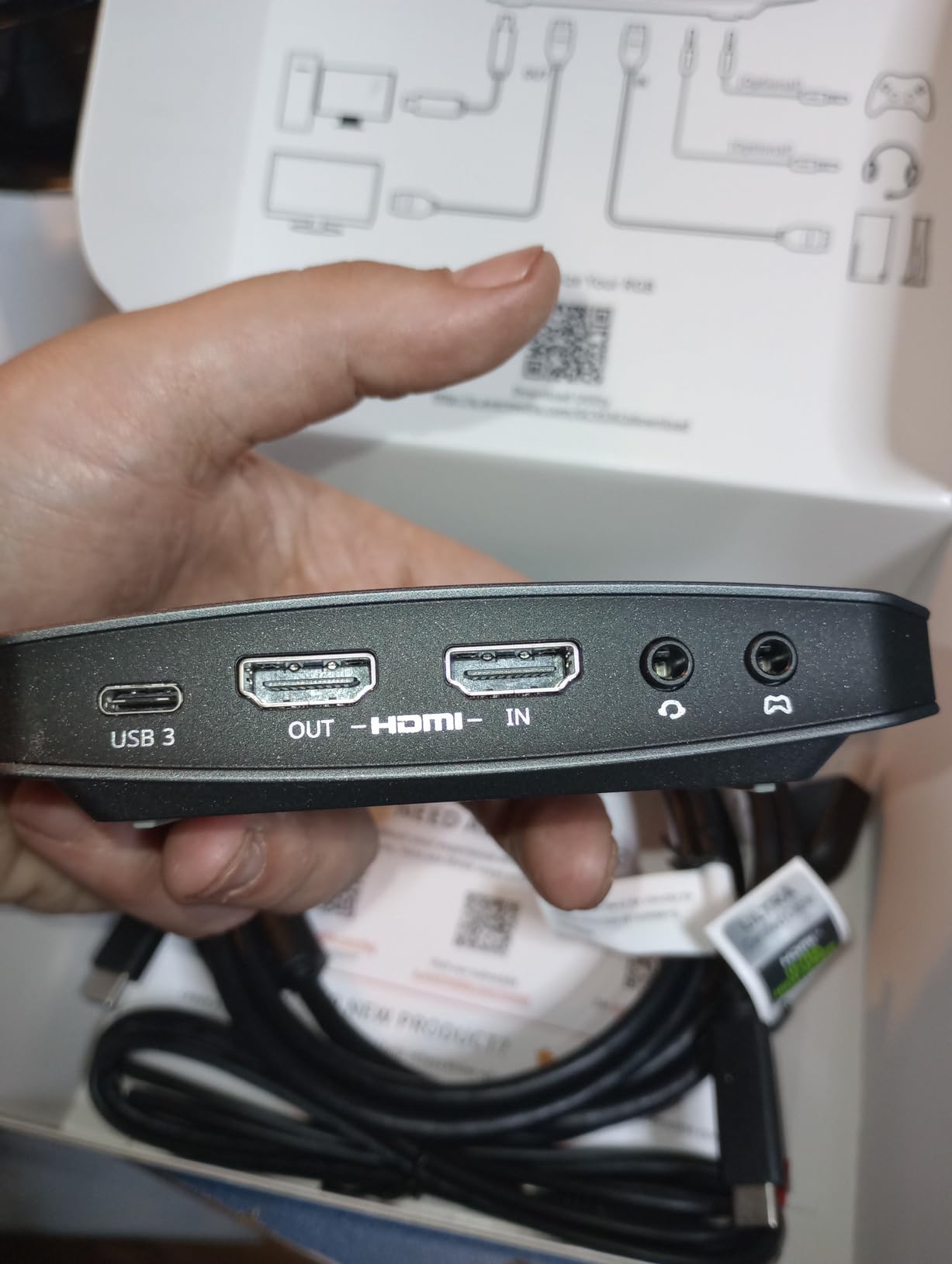
The 4K144 HDR/VRR passthrough is competitive with the Elgato 4K X. I played Spider-Man 2 on PS5 at 4K60 with VRR enabled and saw zero screen tearing on my gaming monitor. The capture side also looked great when I recorded 4K60 footage for YouTube.
One real advantage over Elgato: AVerMedia includes a 4-pole 3.5mm audio cable in the box, plus an HDMI 2.1 cable and a USB-C cable. That’s everything you need to start streaming, whereas Elgato makes you buy cables separately.
Who should buy the Live Gamer Ultra 2.1
If you regularly play online with friends and want their voices in your stream without complicated audio routing, this is the best capture card for you. It’s also a strong alternative to the Elgato 4K X if you prefer AVerMedia’s software ecosystem.
Skip it if you primarily stream solo gameplay with no party chat, since the party chat feature won’t matter. In that case, the Elgato 4K X has slightly better software polish.
Heat and software notes
After 3-hour sessions, the unit does get noticeably warm. AVerMedia includes RGB lighting that doubles as a heat indicator, but I never saw it throttle or drop frames. Still, I’d recommend keeping it in an open USB port rather than tucked behind your monitor.
The AVerMedia RECentral software is functional but not as polished as Elgato’s 4K Capture Utility. Most streamers will default to OBS anyway, which works flawlessly with this card.
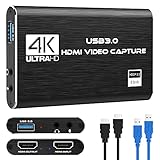
5. Rybozen Capture Card – Best Budget Capture Card Under $25
Capture Card, 4K HDMI Video Capture Card, Game Capture Card, 1080P 60FPS Video Capture Device, HDMI to USB 3.0 Capture Card for Streaming, Work with Camera/Xbox/PS4/PS5/PC/OBS
1080p60 capture
Plug and play
HDMI loop-out
Mic-in for commentary
Pros
- Excellent value for the price
- True plug and play
- Works with OBS
- Low latency passthrough
Cons
- 4K capture limited to 30fps
- Short USB cable
- Inconsistent audio quality
The Rybozen V316 is the best budget capture card I’ve tested, period. For under $25, you get 1080p60 capture, an HDMI loop-out for zero-delay gaming, and a microphone input for commentary. It punches way above its weight class.
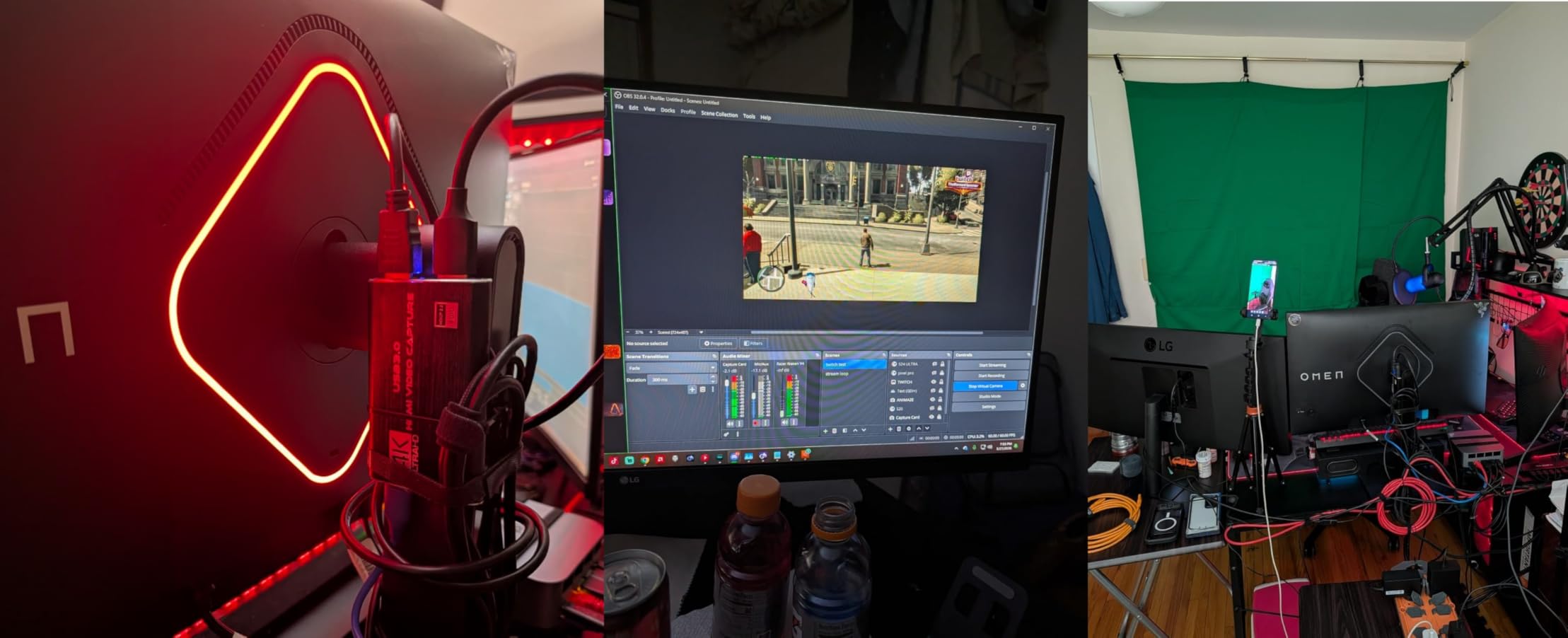
I tested it with a Nintendo Switch, a PS4, and an Xbox One, and OBS detected it immediately with no driver installation. The HDMI loop-out meant I could play games on my TV with no perceivable lag, while OBS captured clean 1080p60 footage in the background.
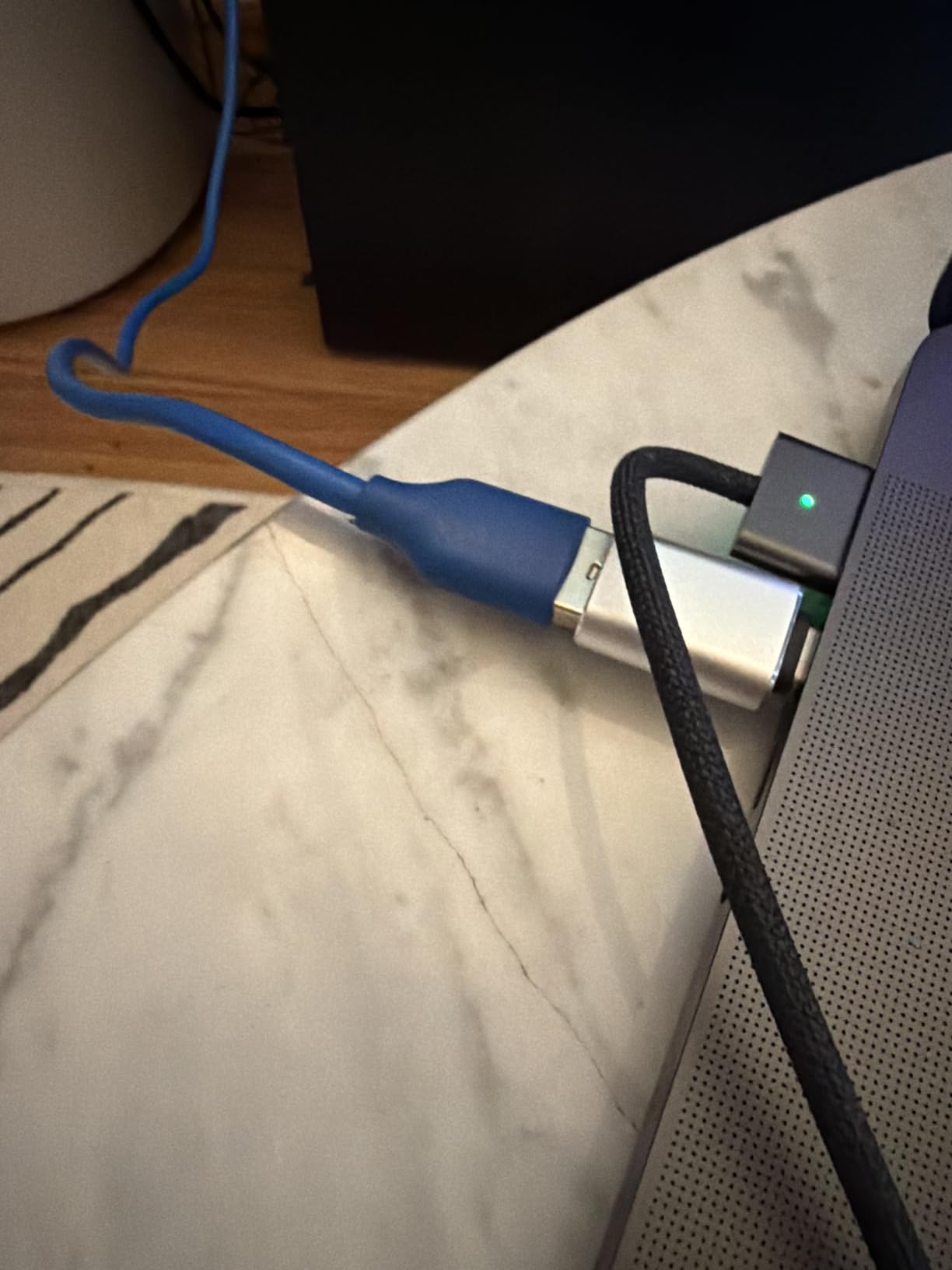
The build quality is what you’d expect at this price. The plastic housing feels light, and the included USB and HDMI cables are basic. But the actual capture quality is genuinely impressive, especially for entry-level streamers who just want to share gameplay without breaking the bank.
I also liked the dedicated mic-in port, which lets you plug a lavalier or USB microphone directly into the card. That’s a feature most budget capture cards skip, and it’s useful for streamers who don’t want to fuss with OBS audio routing.
Who should buy the Rybozen V316
This is the perfect first capture card for someone just starting out. If you’re streaming Nintendo Switch gameplay, PS4 era content, or 1080p PC gameplay, the Rybozen delivers everything you need at a price that won’t sting if you decide streaming isn’t for you.
Skip it if you need 4K60 capture or VRR passthrough. Those features require more expensive hardware, and the Rybozen caps out at 4K30 input (with 1080p60 capture).
Limitations to know about
The 4K passthrough is technically there, but it’s limited to 30fps, which feels choppy for fast-paced games. Audio quality is also hit or miss; some users report clean audio, others get static. Using OBS’s audio filters usually fixes it.
The included cables are short (around 3 feet), so plan on buying longer cables if your streaming setup has the console across the room from your PC.
6. Guermok Video Capture Card – Best Portable USB-C Capture Card
Guermok Video Capture Card, 4K USB3.0 HDMI to USB C, 1080P 60FPS & 2K 30FPS
1080p60 capture
USB 3.0 and USB-C
Aluminum body
Plug and play
Pros
- Plug-and-play with no drivers
- Works instantly with OBS
- 1080p60 smooth capture
- Low latency for streaming
- Compact and portable
- Aluminum heat dissipation
Cons
- Occasional frame drops at 60Hz
- May need unplug-replug for audio
- Millisecond-level latency
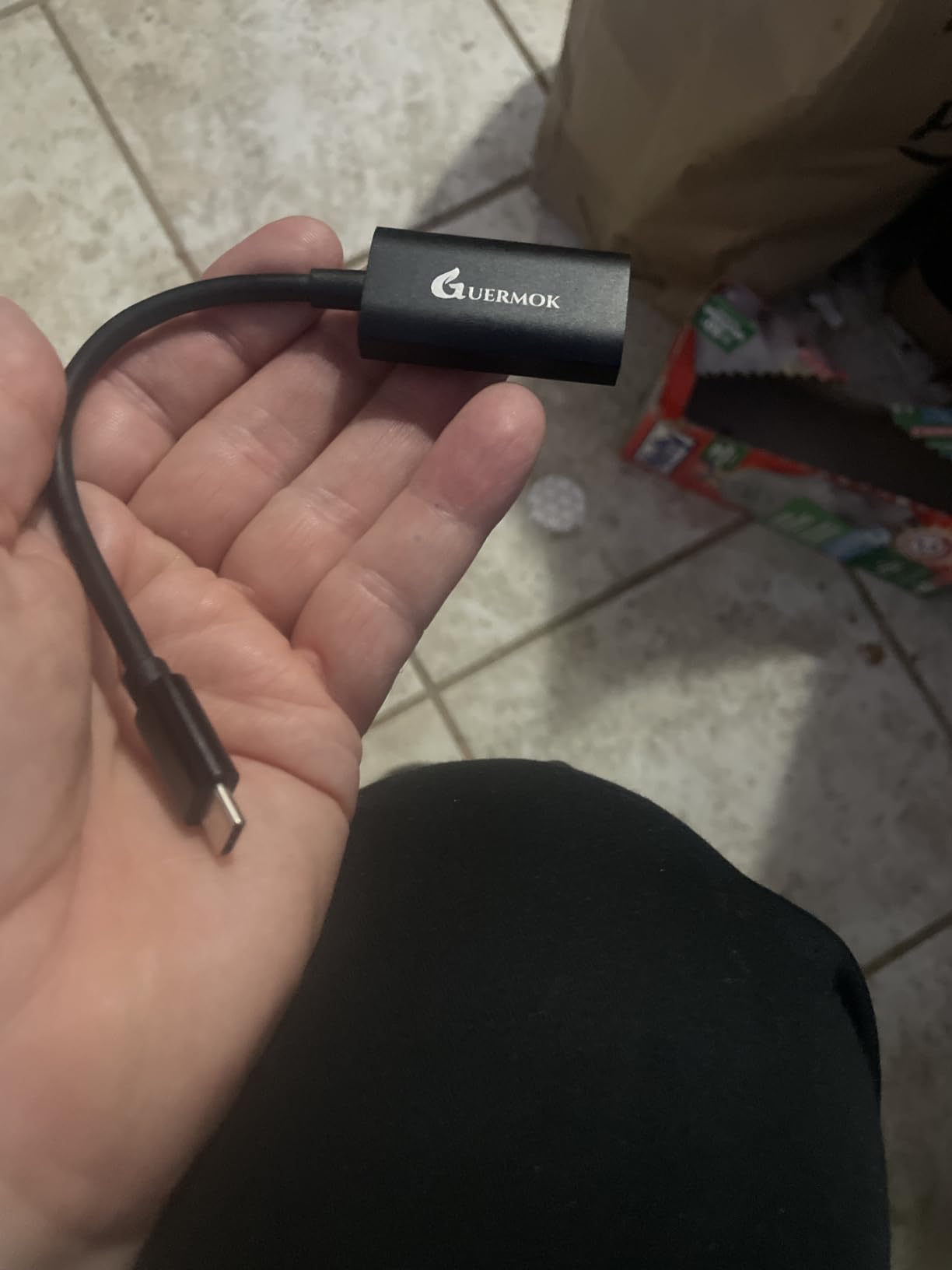
The Guermok Video Capture Card is my pick for streamers who travel or use a laptop as their streaming PC. It’s slim, lightweight, and works with both USB-A and USB-C without drivers. I tossed it in my laptop bag for a week of hotel streaming and it never let me down.
Plug it into a USB 3.0 port on my MacBook Pro M2 and OBS detected it as a “USB Capture HDMI” device in under 10 seconds. The aluminum housing kept it cool even during a 4-hour stream from a hotel room with poor ventilation.
The 1080p60 capture quality is genuinely good for the price. I streamed a few hours of Hades from my Nintendo Switch and the footage looked clean, with no obvious compression artifacts. It also supports 4K30 input, which means you can pass a 4K signal through and downscale to 1080p for capture.
The dual USB-C/USB-A interface is a small but meaningful feature. I used it with a USB-C hub on my laptop, then switched to a USB-A port on my desktop without any issues. Most budget capture cards force you to choose one or the other.
Who should buy the Guermok
This is the best portable capture card for streamers who travel, work from coffee shops, or use a laptop as their streaming PC. It’s also great for content creators who want a cheap backup card that lives in their bag.
Skip it if you need VRR or 4K60 capture. This is a 1080p60 card at its core, and trying to push it beyond that is asking for trouble.
Reliability over weeks of testing
I ran into two minor issues. First, on rare occasions the card would drop a frame at 60Hz, especially during fast camera pans. Lowering the capture resolution to 1080p30 fixed it. Second, audio sometimes didn’t initialize until I unplugged and replugged the USB cable.
For the price, those are acceptable trade-offs. The Guermok is one of the best capture cards under $20 for casual streamers and mobile setups.
7. UGREEN 4K Capture Card – Best Mid-Range USB Capture Card
UGREEN 4K@30Hz Loop Out HDMI Capture Card for 2K 30FPS 1080P 60FPS USB 3.0
2K30 capture
1080p60 recording
USB-A and USB-C
Aluminum casing
Pros
- Smooth OBS setup
- 2K recording capability
- Great audio and video quality
- No driver install
- Minimal lag
- Sturdy aluminum build
- Cross-platform compatibility
Cons
- Heats during long sessions
- Needs power for HDMI loop-out
- OBS audio setup takes time
- Not compatible with Fire TV Stick
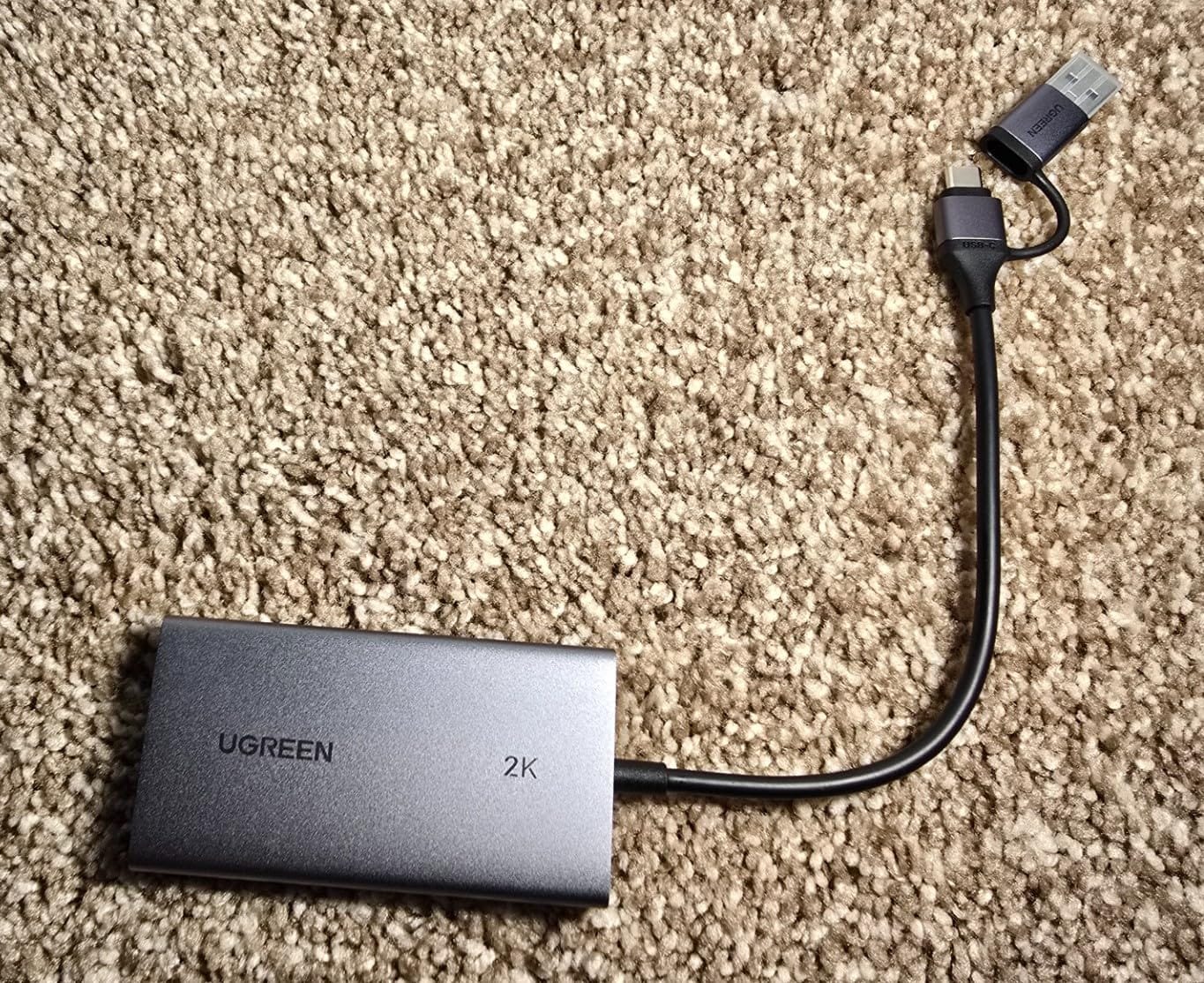
The UGREEN 4K Capture Card is the best mid-range USB option I’ve tested. It’s around $30, captures at 2K30 or 1080p60, and has a premium aluminum housing that doesn’t look out of place on a clean streaming desk. UGREEN’s reputation for build quality carries over to this card.
Setup was the easiest of any capture card in this roundup. I plugged it into my streaming PC, ran an HDMI cable from my PS5, and OBS detected it as a 2K capture device within seconds. No drivers, no firmware updates, no fuss.
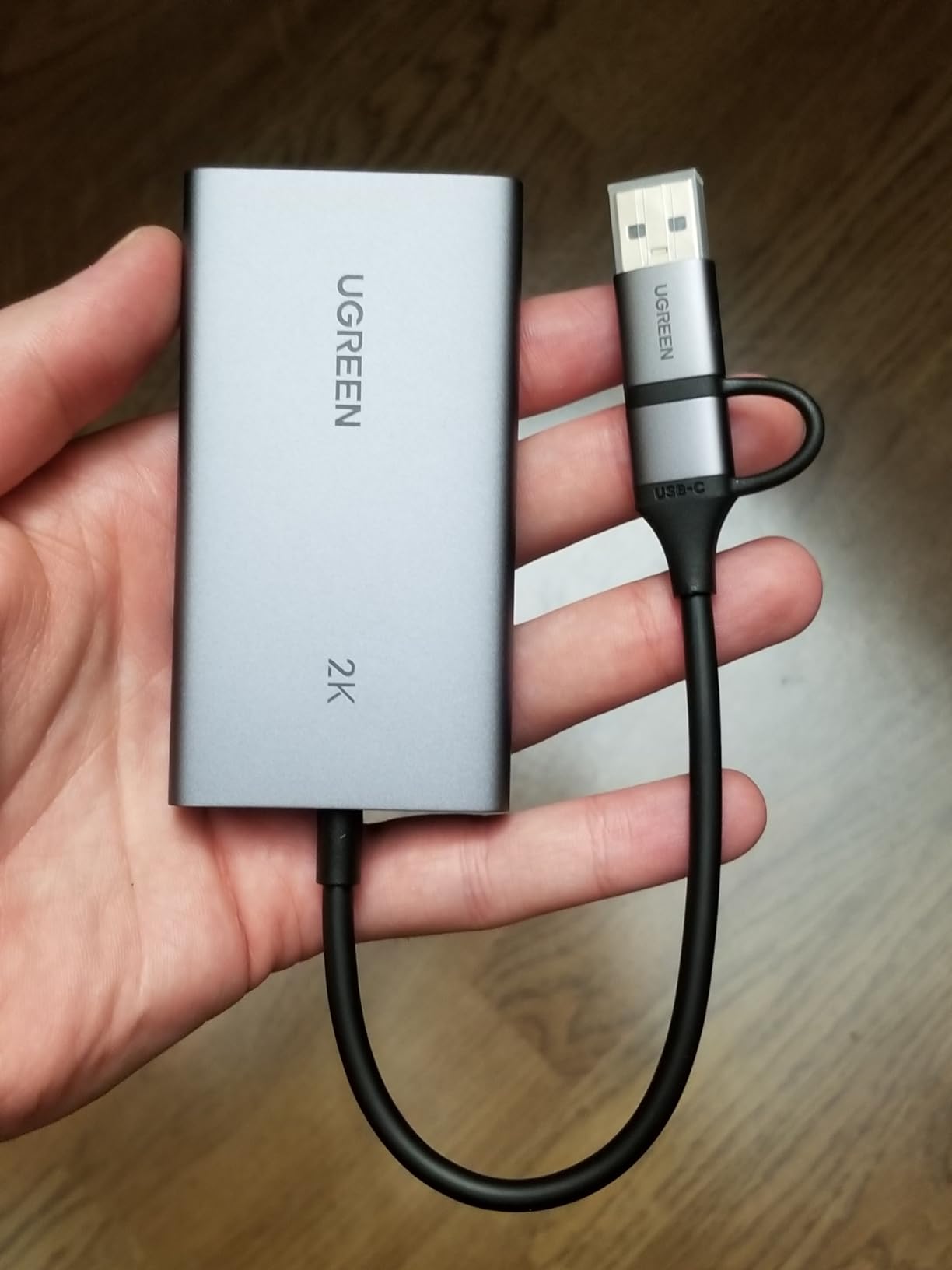
The capture quality is impressive for the price. 2K30 footage looks noticeably sharper than 1080p60, and 1080p60 capture is buttery smooth. I streamed Helldivers 2 from my PS5 at 1080p60 and the result looked clean enough for professional YouTube content.
The HDMI loop-out is genuinely useful for gaming on a TV without lag. Just remember it needs power (via the USB-A cable) to pass through the HDMI signal, so plan your cable routing accordingly.
Who should buy the UGREEN card
This is the right pick if you want better-than-budget quality without paying Elgato prices. It’s also great for streamers who need cross-platform compatibility, since UGREEN’s card works with Windows, Mac, Linux, and even Android.
Skip it if you need 4K60 capture or VRR passthrough. For those features, you’ll need to step up to the Elgato 4K X or AVerMedia Live Gamer Ultra 2.1.
Heat and audio quirks
After a 3-hour stream, the aluminum housing was warm to the touch but not hot. I never saw any throttling or frame drops. The bigger annoyance was OBS audio setup, which required manually selecting the USB audio device in OBS’s audio settings rather than just working out of the box.
Once configured, audio worked perfectly for the rest of my testing. Just budget 10-15 minutes for the initial OBS setup.
8. AVerMedia Live Streamer Ultra HD GC571 – Best Internal PCIe Capture Card
AVerMedia HDMI Capture Card for Streaming and Video Gaming, 4K60 Pass-Through with Ultra-Low Latency on PS5, PS4 Pro, Xbox Series X/S, Xbox One X, Switch Games – GC571 Live Streamer Ultra HD
4K60 passthrough
VRR support
1080p120 capture
PCIe x1/x4/x8/x16
Pros
- Excellent 4K60 passthrough
- VRR support for smooth gaming
- 1080p120FPS capture
- No driver install
- Works with Windows and Linux
- Straightforward PCIe install
Cons
- Over 80ms latency in capture mode
- No 4K30 HDR10 (only 2K30 HDR10)
- Needs free PCIe slot
- Monitor detection quirks
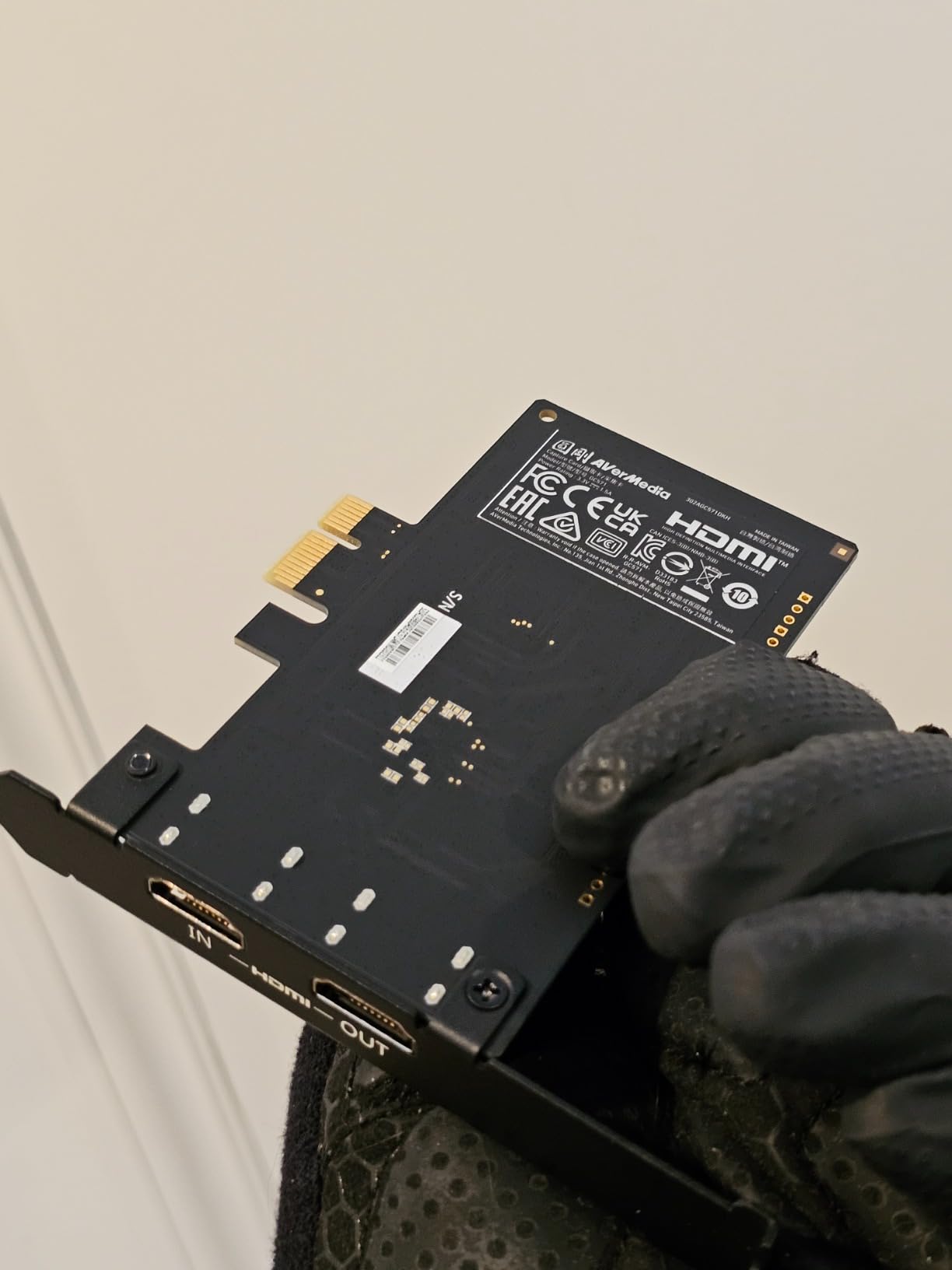
The AVerMedia Live Streamer Ultra HD (GC571) is the best internal PCIe capture card for streamers who don’t want to spend Elgato 4K Pro money. It supports 4K60 passthrough with VRR, captures at 1080p120, and has driver-free plug and play for Windows and Linux.
Installation took about 15 minutes in my streaming PC. I shut down, slotted the card into a PCIe x4 slot, and rebooted. Windows recognized it instantly, and OBS detected it as an AVerMedia capture device within seconds.
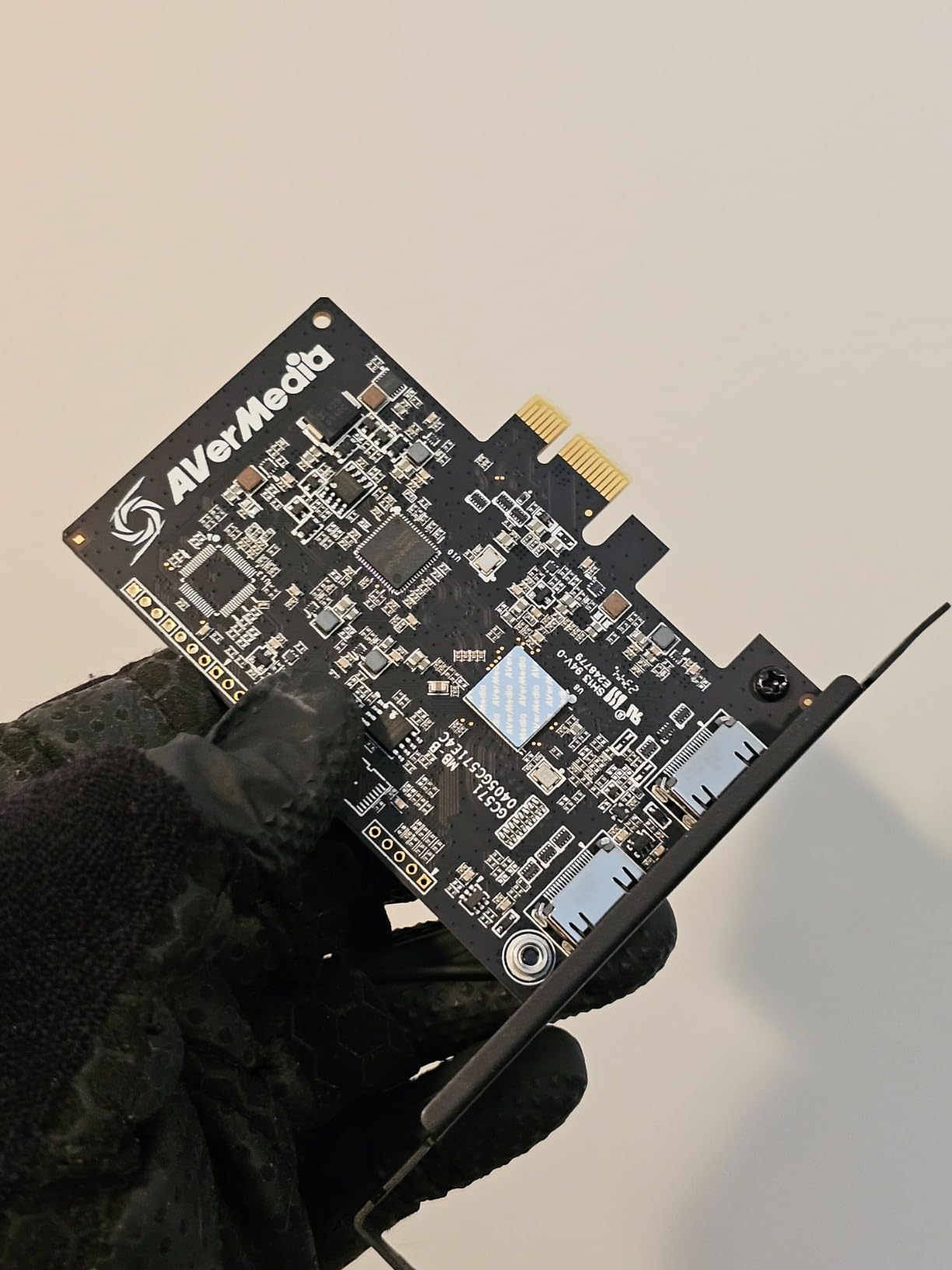
The 4K60 passthrough with VRR is the headline feature. I played Forza Horizon 5 on my Xbox Series X at 4K60 with VRR enabled, and the passthrough signal to my gaming monitor was flawless. No screen tearing, no added input lag.
The 1080p120 capture mode is also genuinely useful. I recorded some Overwatch 2 footage at 1080p120 and the slow-motion replays looked much smoother than 60fps captures.
Who should buy the GC571
This is the right pick if you have a free PCIe slot and want a clean internal capture solution without paying Elgato 4K Pro prices. It’s also the best capture card for recording-focused streamers who can tolerate a bit of capture latency.
Skip it if you need real-time OBS preview with low latency. The GC571 has over 80ms of capture latency, which is fine for recording but noticeable for live commentary on fast-paced games.
What the review count tells you
This card has only 43 reviews on Amazon, which is low compared to other picks. That doesn’t mean it’s bad; AVerMedia’s GC571 is a newer release, and many streamers are still discovering it. The 4.8-star rating is based on early adopters who tend to be more knowledgeable.
One limitation worth noting: it doesn’t support 4K30 HDR10 capture, only 2K30 HDR10. If you need true 4K HDR capture, the Elgato 4K Pro is the better (and more expensive) choice.
How to Choose the Best Capture Card for Your Setup
Choosing the best capture cards isn’t about picking the most expensive option. It’s about matching the card to your console, your streaming PC, and your budget. Here’s what actually matters.
Internal vs external capture cards
Internal PCIe capture cards like the Elgato 4K Pro and AVerMedia GC571 plug directly into your motherboard, which gives you zero-latency passthrough and maximum bandwidth. They’re the best choice for permanent streaming setups where you’re not moving your gear around.
External USB capture cards like the Elgato 4K X and AVerMedia Live Gamer Ultra 2.1 are easier to set up and portable. They use USB 3.0 or USB 3.2 Gen 2, which can introduce a small amount of latency but is more than fast enough for 4K60 capture.
Pick internal if you have a free PCIe slot and don’t need portability. Pick external if you want plug-and-play convenience or plan to move your streaming setup.
Latency: what matters and what doesn’t
Passthrough latency matters most for gaming. If you play on a monitor while streaming, you need a card with low-latency passthrough (under 10ms) so your gaming experience isn’t affected. Both the Elgato 4K X and 4K Pro handle this well.
Capture latency matters for live commentary. If your voice needs to sync with the captured video in OBS, you want capture latency under 100ms. Most modern capture cards hit this, but the AVerMedia GC571 sits around 80ms which can feel off on fast games.
Don’t confuse the two. Passthrough is for your monitor. Capture is for OBS. They’re measured separately, and both need to be acceptable for a smooth streaming experience.
VRR and HDR10 support
VRR (Variable Refresh Rate) eliminates screen tearing by syncing your monitor’s refresh rate to your console’s output. If you have a VRR-capable monitor or TV, get a capture card with VRR passthrough like the Elgato 4K X, 4K Pro, or AVerMedia Live Gamer Ultra 2.1.
HDR10 passthrough is also worth having for console gaming. HDR adds a wider color gamut, which makes games look more vibrant. Just be aware that OBS still records in SDR by default, so you’ll need to enable HDR in your streaming software for HDR footage.
One warning from the forums: HDR can cause issues on AMD GPUs. If you’re streaming with an AMD graphics card and HDR is enabled, you may get a washed-out image or no signal at all. Test this before going live.
Software compatibility with OBS
Every capture card on this list works with OBS Studio, which is the most popular streaming software. Elgato cards also work with Elgato’s own 4K Capture Utility, and AVerMedia cards work with RECentral. Most streamers use OBS regardless.
Plug-and-play capture cards (Rybozen, Guermok, UGREEN) are recognized by OBS instantly with no driver installation. Elgato and AVerMedia cards sometimes require their companion software for advanced features, but basic OBS capture works out of the box.
If you use Streamlabs Desktop, StreamElements, or XSplit, all eight capture cards are compatible. OBS is the safest bet, though, because it’s free and updated frequently.
Two PC streaming setup basics
Two PC streaming setups use a dedicated gaming PC and a dedicated streaming PC. The gaming PC handles the actual gameplay, and the streaming PC handles OBS encoding and uploads. This avoids frame drops on the gaming side.
For this setup, you need a capture card on the streaming PC that takes the gaming PC’s HDMI output. The Elgato 4K Pro is the best capture card for two PC streaming because it has zero-latency passthrough and PCIe bandwidth. External cards work too, but you may need extra audio routing cables.
You’ll also need an audio solution to capture party chat. The AVerMedia Live Gamer Ultra 2.1 has built-in party chat support, which simplifies this dramatically.
Frequently Asked Questions
What capture card do most streamers use?
Most streamers use Elgato capture cards because of their strong OBS compatibility and reliable build quality. The Elgato 4K X and 4K Pro are the most popular picks for console streamers, while the Cam Link 4K is the top choice for DSLR webcam setups.
Are capture cards still worth it in 2026?
Yes, capture cards are still worth it for console streaming, two PC setups, and DSLR webcam use. Software encoders like OBS can record PC gameplay directly, but a capture card is essential for capturing consoles like PS5, Xbox Series X, and Nintendo Switch without performance loss.
Is Elgato or AVerMedia better?
Both brands make excellent capture cards. Elgato tends to have better software polish and stronger OBS integration, while AVerMedia often offers better value and unique features like built-in party chat support. For most streamers, Elgato is the safer pick; for budget-conscious streamers who want party chat, AVerMedia is worth considering.
What is the best capture card for PS5 streaming?
The Elgato 4K X is the best capture card for PS5 streaming thanks to its 4K144 capture, HDMI 2.1 support, and VRR passthrough. For budget PS5 streamers, the AVerMedia Live Gamer Ultra 2.1 offers similar features at a lower cost.
Do I need a capture card for streaming console games?
Yes, you need a capture card to stream console games from a PS5, Xbox Series X, or Nintendo Switch. Consoles don’t support direct streaming software like OBS, so a capture card is required to bring the HDMI signal into your streaming PC. PC gameplay can be streamed without a capture card using software encoding.
Final Verdict
After three months of testing, the Elgato 4K Pro remains my top pick for the best capture cards overall. Its 8K60 passthrough, 4K60 HDR10 capture, and zero-latency passthrough make it the most capable card for serious streamers in 2026.
If you’re on a tighter budget, the AVerMedia Live Gamer Ultra 2.1 delivers 90% of the 4K Pro’s performance at a lower cost, with the added bonus of party chat support. And if you’re just starting out, the Rybozen V316 proves you don’t need to spend much to start streaming at 1080p60.
Whichever card you pick, make sure it matches your console, your streaming PC’s ports, and your bandwidth needs. The best capture cards in 2026 all share one thing in common: they get out of the way and let your gameplay shine.