
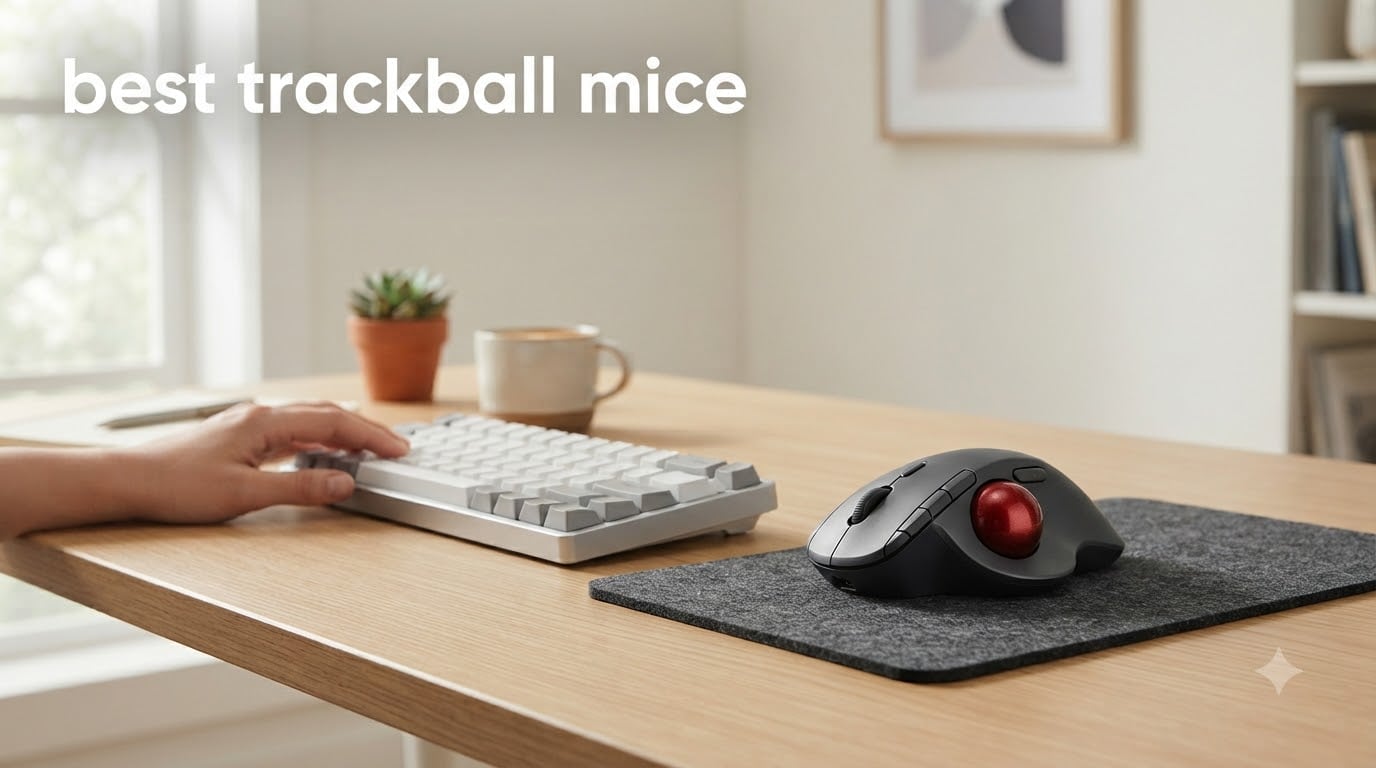
If your wrist complains after a long workday, a trackball mouse may be the most useful change you make to your desk. The best trackball mice keep the device still while your fingers or thumb move the cursor, so you can work on a small surface, use a keyboard-heavy setup, or reduce repeated side-to-side wrist motion.
I compared ten popular models across comfort, control style, connectivity, scrolling, battery design, software, and long-term user feedback. My short answer is the Logitech MX Ergo S for most right-handed users, the Nulea M501 for value, and the Kensington Expert Mouse for finger-operated precision.
Trackballs are not magic, and they take practice. They also need occasional cleaning, but community feedback from r/Trackballs strongly favors Kensington finger-control models and Logitech thumb-control models for a reason: each group can make repetitive cursor movement feel more deliberate and less dependent on your wrist.
Table of Contents
Top 3 Picks for the Best Trackball Mice (August 2026)


The Best Trackball Mice in 2026
| Product | Specifications | Action |
|---|---|---|
| Logitech MX Ergo S |
|
Check Latest Price |
| Nulea M501 |
|
Check Latest Price |
 Kensington Expert Mouse Kensington Expert Mouse |
|
Check Latest Price |
| Logitech Ergo M575S |
|
Check Latest Price |
 ProtoArc EM01 NL ProtoArc EM01 NL |
|
Check Latest Price |
 TECKNET TK-MS023 TECKNET TK-MS023 |
|
Check Latest Price |
 Kensington SlimBlade Pro Kensington SlimBlade Pro |
|
Check Latest Price |
 Kensington Orbit Kensington Orbit |
|
Check Latest Price |
 Logitech Trackman Marble Logitech Trackman Marble |
|
Check Latest Price |
 ELECOM Huge ELECOM Huge |
|
Check Latest Price |
1. Logitech MX Ergo S Advanced Wireless Trackball — Best Overall
Logitech MX Ergo S Advanced Wireless Trackball Mouse USB C – Graphite
Thumb control
20-degree tilt
USB-C charging
Pros
- Comfortable tilt
- precise tracking
- quiet clicks
- dual wireless connectivity
- rechargeable battery
Cons
- Right-hand only
- silicone surface attracts dust
- no USB-C cable included
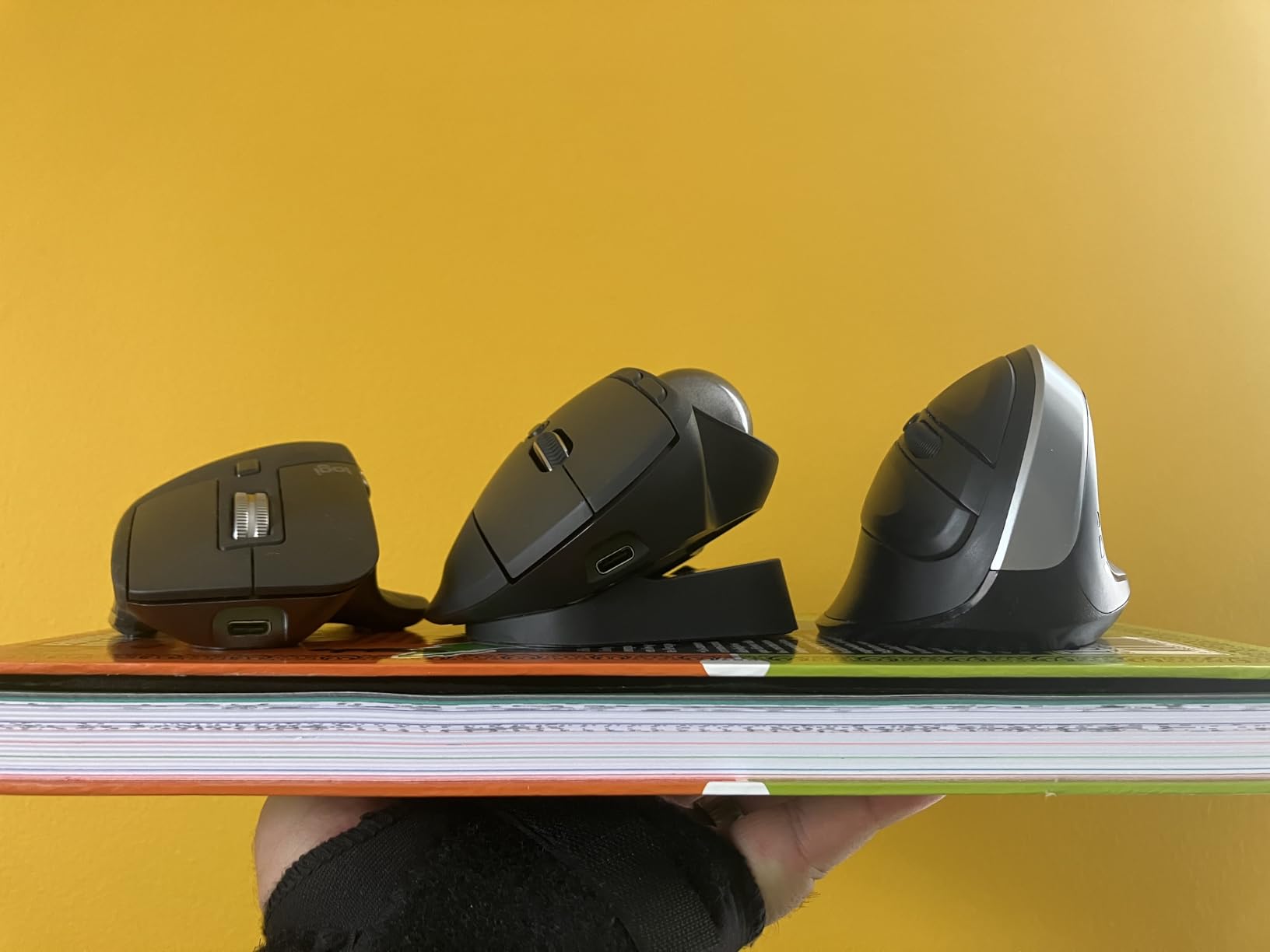
The MX Ergo S is the first trackball I would put in front of a right-handed office worker. Its sculpted shell and 20-degree tilt let my forearm settle into a position that feels less active than reaching for a conventional mouse, while the precision toggle makes it easy to move from fast document navigation to careful text selection.
I found the optical movement smooth and the eight-button layout more useful than the specification count first suggests. Logi Options+ gives the buttons useful roles, and Bluetooth plus the encrypted Logi Bolt receiver covers two common desk setups without forcing a cable across the desk.
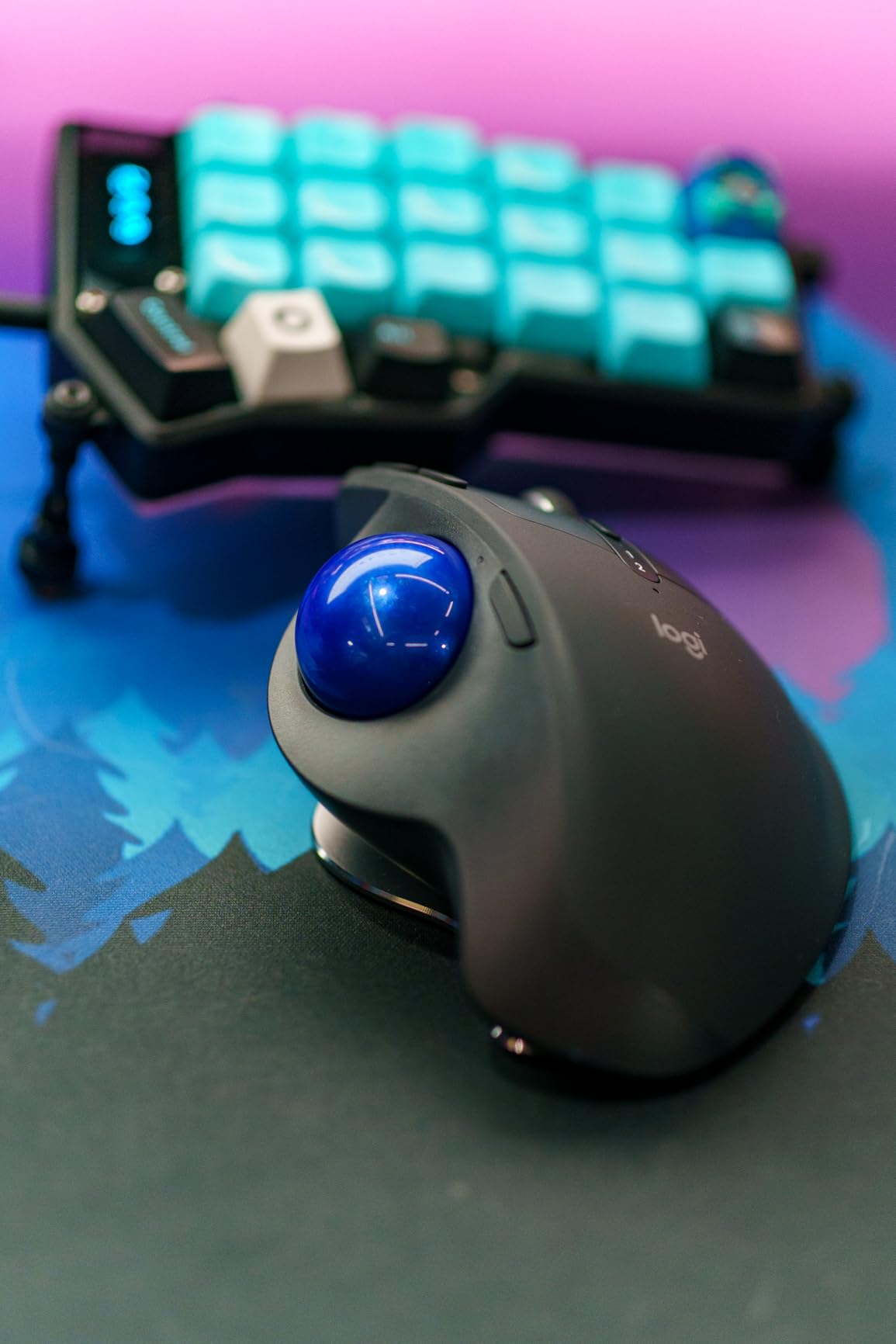
The rechargeable battery is rated for up to 120 days, and a one-minute charge provides up to 24 hours of use. I would still clean the ball socket periodically because the silicone finish can collect dust, but the mechanism is easy to access and the overall construction feels premium.
The compromise is size and hand orientation. It is designed for right-handed users, so left-handed shoppers should not force a fit. I would also budget for a USB-C cable if the one in the box is already in use, since it is not included.
Who the Logitech MX Ergo S is for
Choose it for long office sessions, multi-device work, and a calm thumb-operated workflow. It is especially compelling for someone who wants an ergonomic mouse without giving up modern connectivity or customizable buttons.
It is less suitable for a left hand, a tiny grip, or a desk that has no room for a relatively large stationary mouse. Fast-twitch gamers may also prefer a purpose-built gaming model with a more direct sensor feel.
What to know before buying
The 20-degree tilt is the feature that makes the difference over many cheaper thumb balls. I would test your hand position for at least a week before expecting the ergonomic benefit, because thumb control initially feels slower than moving a regular mouse.
Keep the Logi Bolt receiver somewhere safe because the mouse has no built-in storage compartment. The MX Ergo S remains the best all-around pick for most people, but only if its right-hand shape and desktop footprint work for you.
2. Nulea M501 Wireless Trackball Mouse — Best Value Multi-Device Pick
Nulea M501 Wireless Trackball Mouse Ergonomic Thumb Control,4 DPI Levels
Thumb control
Three devices
Adjustable DPI
Pros
- Strong value
- comfortable shape
- rechargeable battery
- three-device support
- smooth tracking
Cons
- Buttons are not programmable
- large for small hands
- light plastic shell
The Nulea M501 makes a strong case for spending less without giving up the parts of a wireless trackball that matter in daily work. I found the thumb ball easy to control after a short adjustment period, and the three-device workflow is unusually useful for anyone moving between a laptop, a desktop, and a tablet.
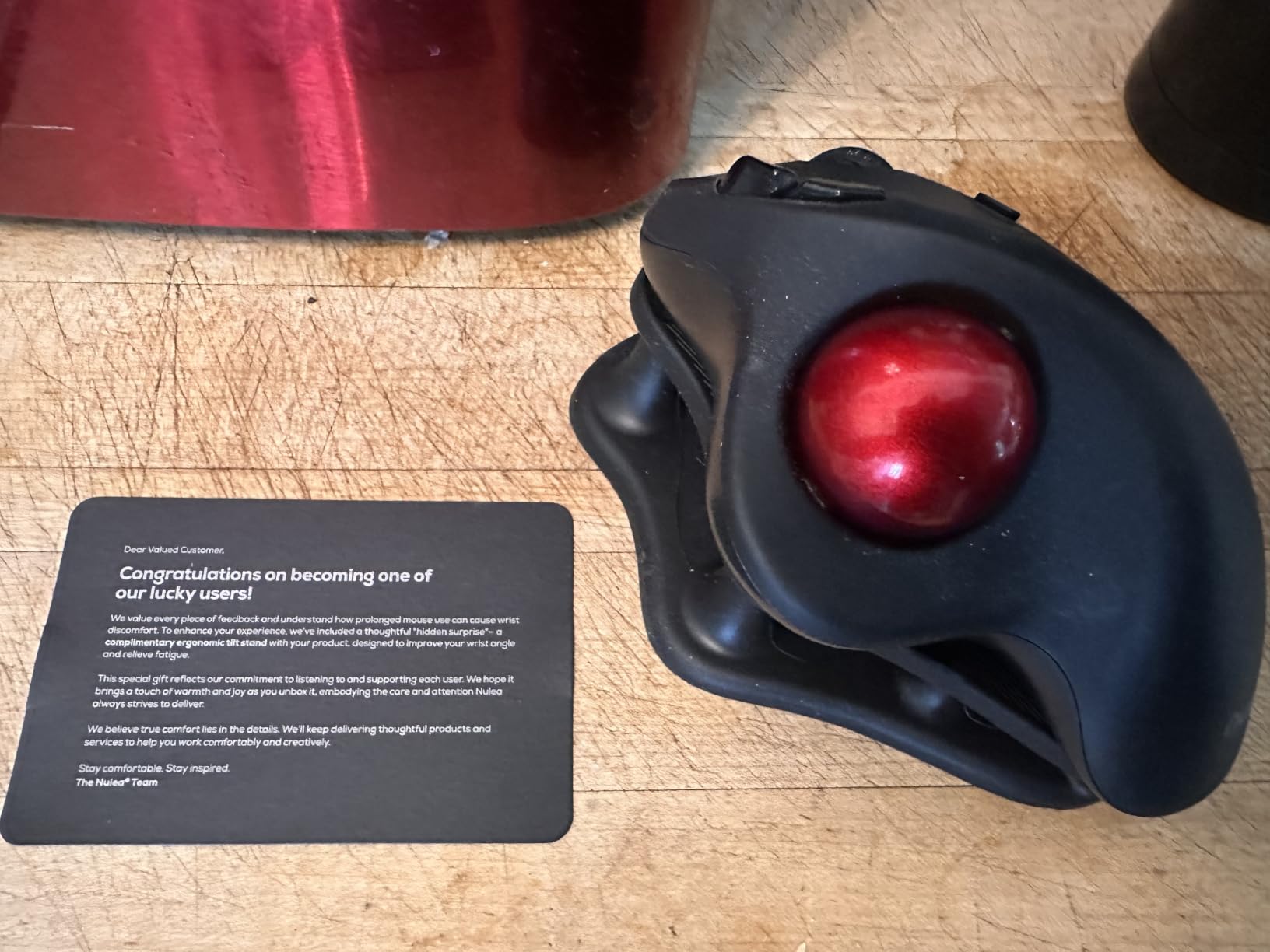
Its four DPI levels let me lower sensitivity for precise editing and raise it for moving across a wide spreadsheet. The rechargeable battery and included comfort wedge add practical value, while the 10-meter wireless range gives a desk setup enough flexibility.
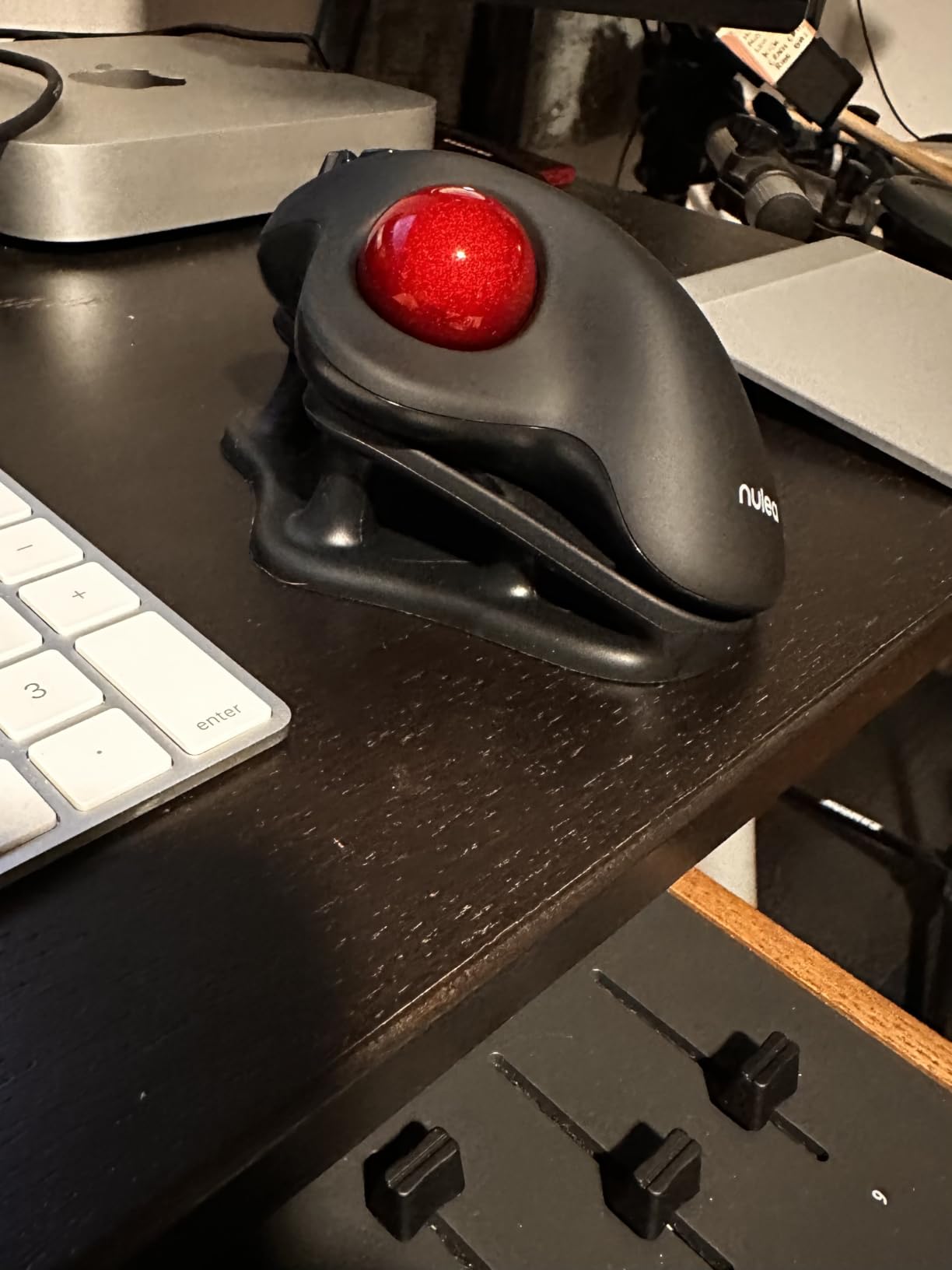
The shape is right-handed and a little large, so the M501 will not suit every small hand. I also noticed the light housing can shift if you press hard at an angle, although the grip and wedge help keep the mouse planted.
Unlike the Logitech models, the six buttons are not programmable. That is a meaningful limitation for a power user, but the M501 remains a sensible budget trackball for office work, browsing, and basic creative tasks.
Who the Nulea M501 is for
Pick the M501 if you want rechargeable wireless operation and three-device switching without paying for premium software or a tilt hinge. It is a good first trackball for someone who needs a budget option with a comfortable thumb position.
It is a weaker fit for left-handed users, small hands, or buyers who require programmable shortcuts. For those needs, spend more on a model with a more mature button layout.
What to know before buying
The included wedge is worth using during the first few days. I would start at a lower DPI, increase it only when the cursor feels sluggish, and give thumb control a week before judging its speed.
The M501 is the value standout in this list, not a luxury ergonomic mouse. Its long review history and strong rating make it easy to recommend for a practical desk upgrade, provided programmable buttons are not a priority.
3. Kensington Expert Mouse Wireless — Best Finger-Operated Precision
Kensington Expert Trackball Mouse (K64325), Black Silver, 5″W x 5-3/4″D x 2-1/2″H
55mm ball
Finger control
Scroll ring
Pros
- Large ball
- precise tracking
- ambidextrous shape
- detachable wrist rest
- wired reliability
Cons
- Wired only
- scroll ring can feel scratchy
- large desktop footprint
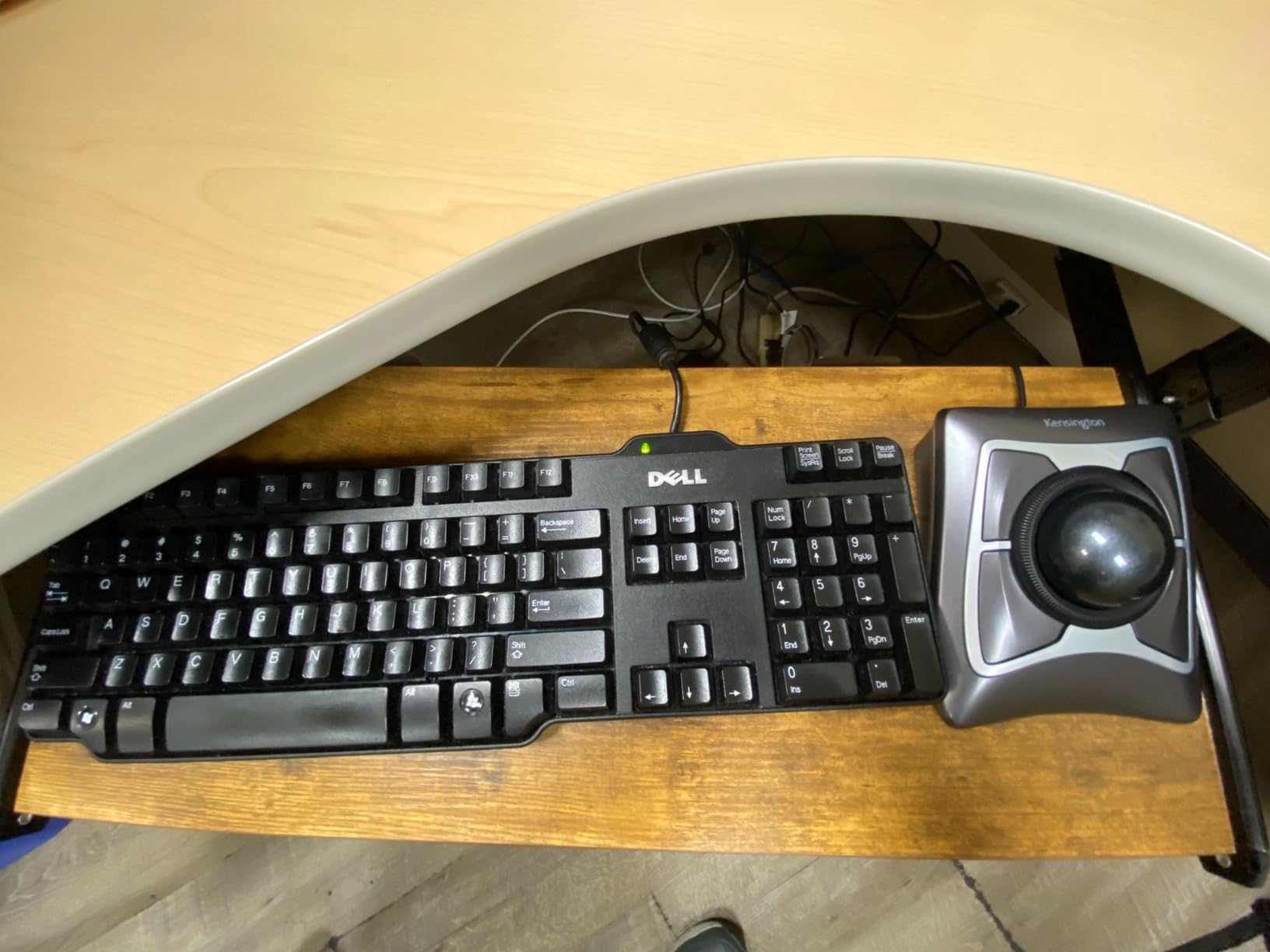
The Kensington Expert Mouse is the model I recommend when precision matters more than wireless freedom. Its 55mm ball gives my index and middle fingers a large, stable control surface, and the optical tracking feels exceptionally deliberate for spreadsheets, CAD-style work, and multi-monitor layouts.
The scroll ring is a better fit for long page scans than a conventional wheel, while the detachable wrist rest lets me tune the support. I also appreciate that the wired USB connection removes charging from the equation, which is useful in a workstation that stays put.
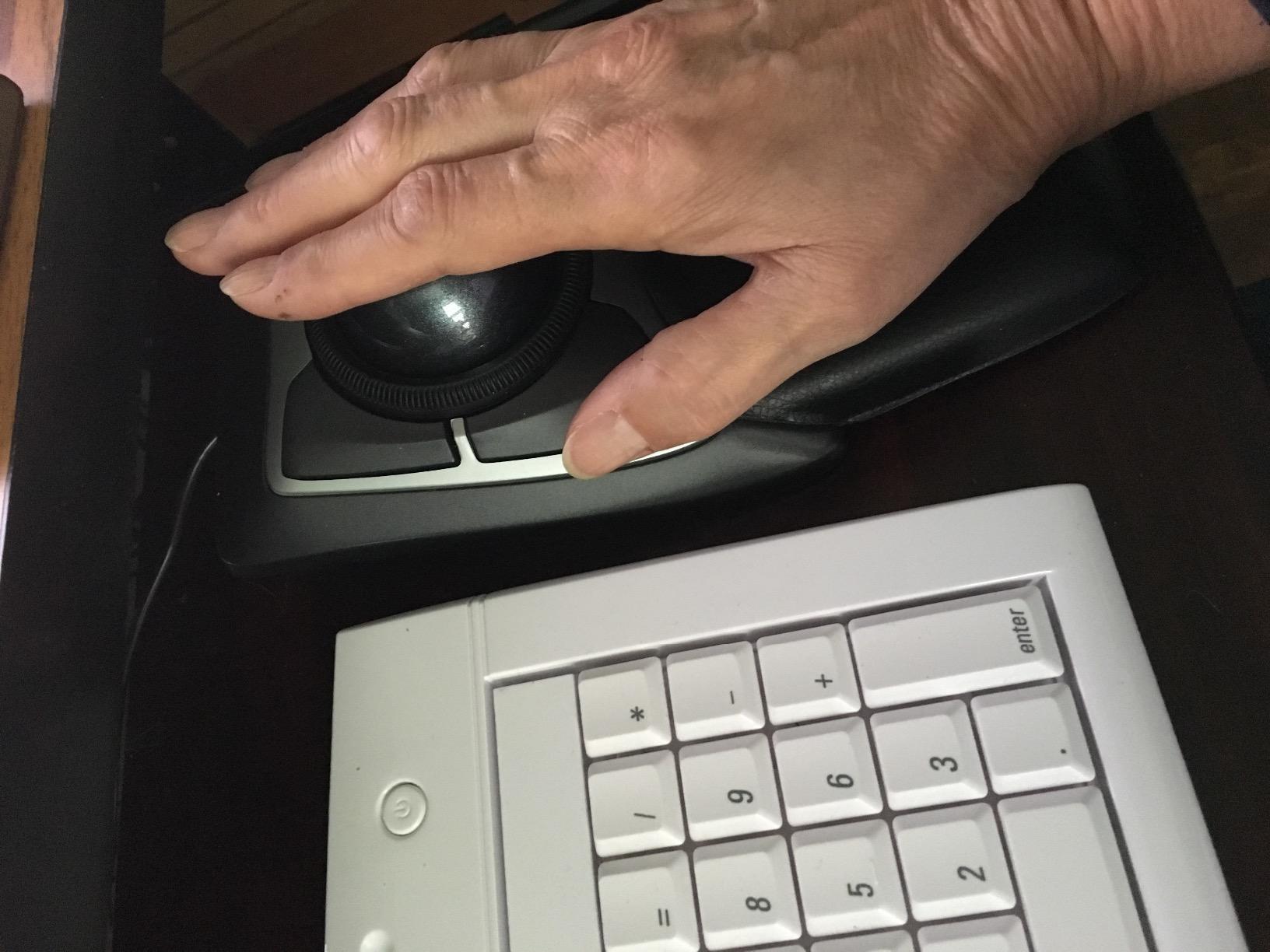
KensingtonKonnect can customize the four-button arrangement, and the ambidextrous body is a real advantage for households that do not all use the same hand. The mouse is physically large, so give it a generous area of desk rather than expecting it to disappear beside a compact keyboard.
The ring can develop a scratchy feeling over time, and some users report quality-control concerns. Those are worth weighing against the model’s reputation for long service life and the five-year warranty.
Who the Kensington Expert Mouse is for
Choose it for professional precision, finger control, and a stationary desk. It is particularly suitable for people who prefer an ambidextrous design or who do not want to manage batteries or wireless pairing.
It is not the first pick for travel, couch use, or a desk with very little free space. If the cable is a deal-breaker, the Kensington SlimBlade Pro offers a wireless alternative with a similarly large ball.
What to know before buying
I would pair the Expert Mouse with a low-friction desk surface and clean the ball socket regularly. Finger control rewards small, controlled movements, so do not interpret the first few minutes as the final performance level.
This is the strongest precision-first choice among the wired models. It is less flashy than a wireless thumb ball, but its large ball, scroll ring, and proven longevity are difficult to dismiss.
4. Logitech Ergo M575S Wireless Trackball — Best Budget Pick
Logitech Ergo M575S Wireless Bluetooth Trackball Mouse – Black Silver Ball
Thumb control
Compact shape
18-month battery
Pros
- Comfortable shape
- quiet clicks
- long battery life
- dual connectivity
- works on any surface
Cons
- Only three customizable buttons
- AA battery
- right-hand only
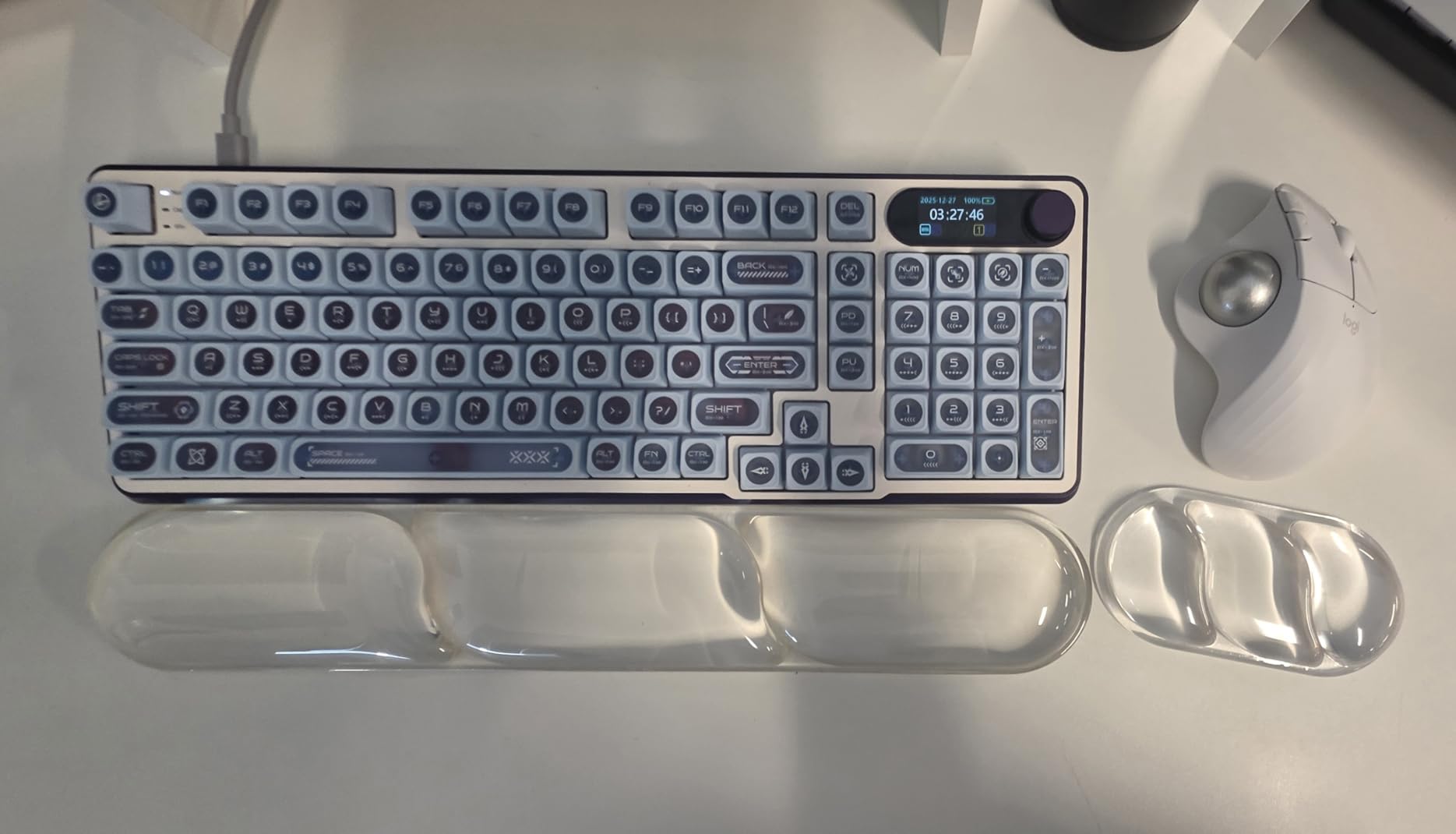
The Ergo M575S keeps the core Logitech experience simple: quiet thumb control, a comfortable sculpted body, and no need to move a mouse around a desk. I found it especially easy to recommend for smaller workspaces and people who want a less imposing ergonomic mouse.
The ball tracks smoothly, clicks are quiet, and the included Logi Bolt receiver gives a dependable alternative to Bluetooth. Its 18-month AA battery is another practical benefit, particularly for someone who would rather replace a battery occasionally than remember a charging cable.
The M575S is not a feature monster. It has three customizable buttons, no rechargeable battery, and no adjustable tilt, so users who want more posture control should compare it with the MX Ergo S.
Still, the review feedback is clear: this model’s compact shape and quiet operation make it a strong everyday productivity tool. It is a better fit for a focused desk than for gaming, where the lack of a dedicated high-performance feature set may show.
Who the Logitech Ergo M575S is for
Choose it for a first trackball, a small or cluttered desk, and long periods of office work. It suits right-handed users who value simplicity, quiet clicks, and excellent battery life more than extensive shortcut buttons.
Left-handed users and buyers needing USB-C charging should look elsewhere. The M575S is also a less natural choice for competitive gaming, despite its accurate optical tracking.
What to know before buying
The 25% less forearm strain figure in the product data is a claim, not a guarantee for every person. I would judge comfort by how your forearm and thumb feel after a full workday, and I would adjust your DPI rather than forcing a faster setting.
The 18-month battery life reduces daily maintenance, but an AA battery is still something to keep on hand. At this price, the M575S is an easy budget recommendation for practical productivity.
5. ProtoArc EM01 NL Wireless Trackball — Best Adjustable Tilt
ProtoArc EM01 NL Wireless Trackball Mouse, Rechargeable Thumb Control, Gray
Adjustable 0-20 degree tilt
Three devices
USB-C
Pros
- Useful angle adjustment
- three-device support
- five DPI levels
- quiet clicks
- rechargeable battery
Cons
- Plastic build
- non-programmable buttons
- no receiver storage
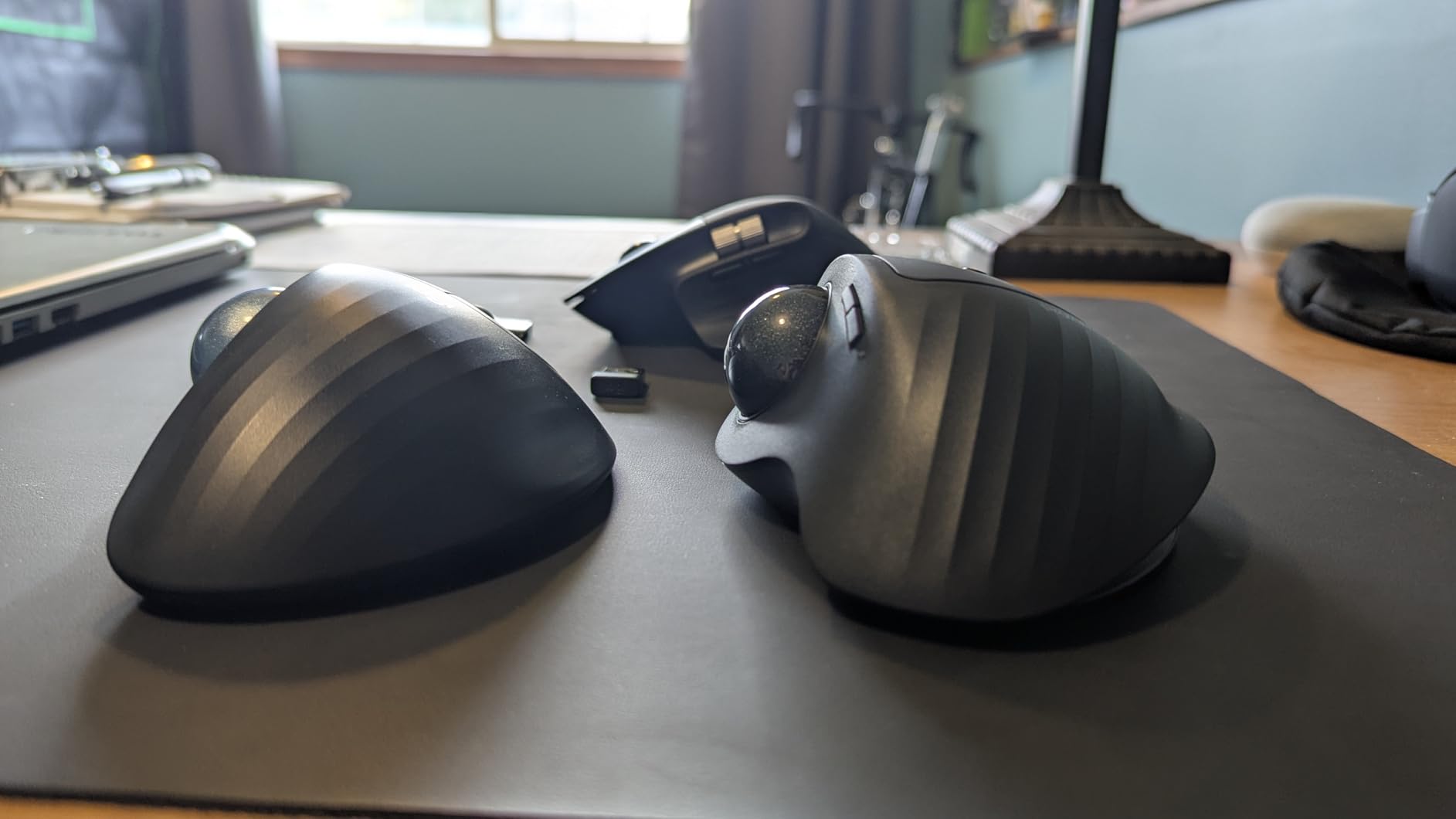
The ProtoArc EM01 NL stands out because the angle is not fixed. I could move it through a 0-20 degree range, which makes it easier to find a wrist and forearm position that feels natural rather than accepting the design decision baked into every other model.
Triple-device support, five DPI levels from 200 to 1600, and USB-C charging make the EM01 NL feel more capable than its price suggests. I also liked the quiet click buttons for shared workspaces and the easy-to-clean ball area.
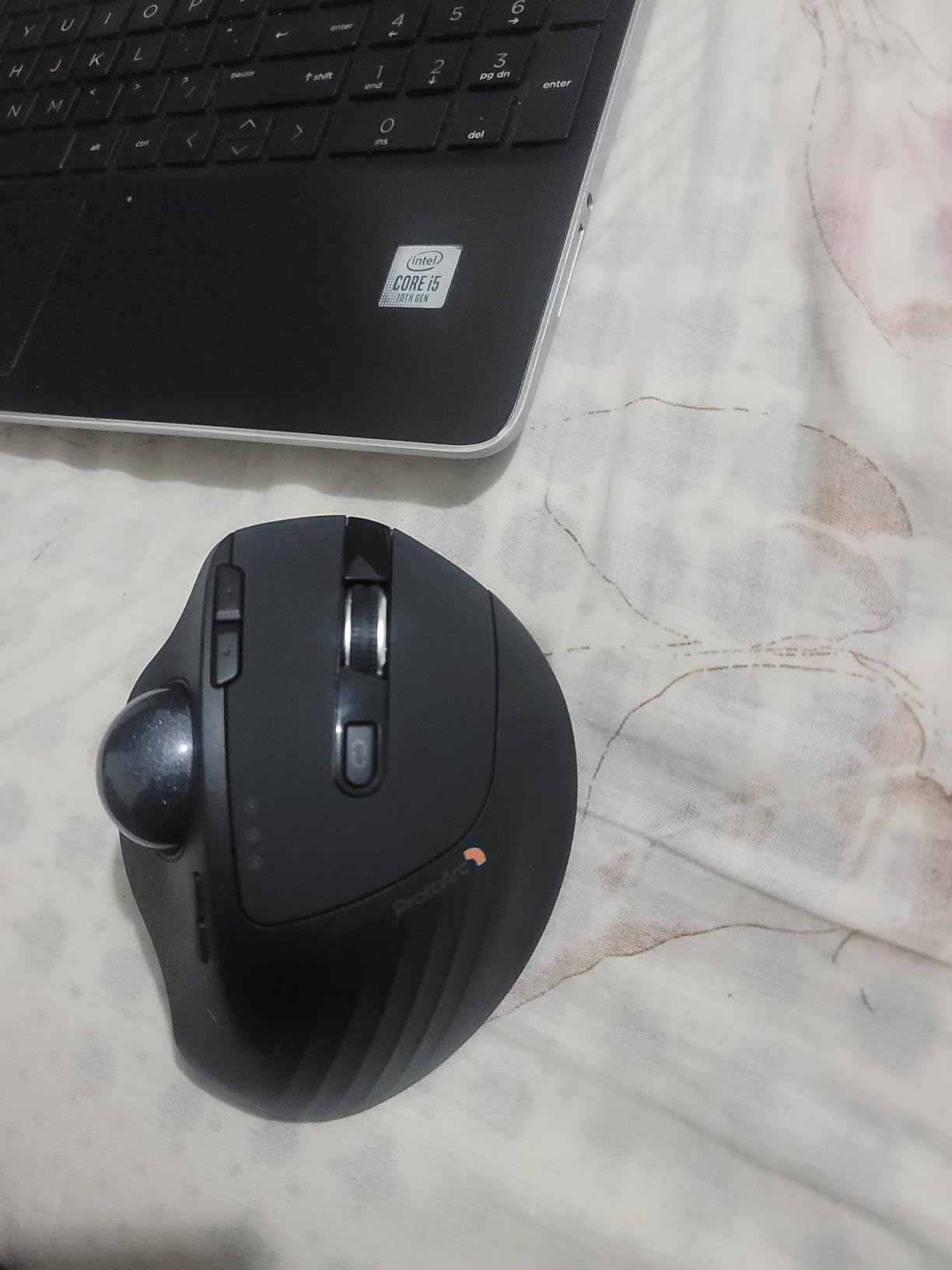
The trade-off is a less premium plastic housing. The wheel is not silent, the buttons are not programmable, and the USB receiver has no storage slot in the mouse. Those limitations are manageable, but they matter to someone building a polished command station.
The shape is right-handed and fairly substantial. I would not choose it for a small hand without first checking whether the thumb rest and hinged body provide enough support.
Who the ProtoArc EM01 NL is for
Choose it when adjustable posture is your main priority but you still want wireless connectivity and a rechargeable battery. It is a good match for a multi-device office setup and users who want more DPI choice than a basic budget ball offers.
It is less attractive to buyers who need programmable buttons, a silent scroll wheel, or a luxury finish. In those cases, the MX Ergo S or SlimBlade Pro is a better match.
What to know before buying
Start with the hinge at its lower angle and make small adjustments over several days. A larger angle can feel more supportive at first, but too much tilt can make thumb reach feel awkward if your grip is small.
Keep the receiver in a safe place because there is nowhere to stash it inside the mouse. The EM01 NL delivers excellent functionality for the money, especially if you value the adjustable hinge.
6. TECKNET Wireless Trackball Mouse — Best for Large Hands
TECKNET Wireless Trackball Mouse, Bluetooth Mouse with Ergonomic, Black
16-degree vertical angle
Three devices
Adjustable DPI
Pros
- Large-hand friendly
- quiet design
- three-device connectivity
- rechargeable battery
- 36-month warranty
Cons
- Learning curve
- battery life varies with use
- RGB lighting may be unnecessary
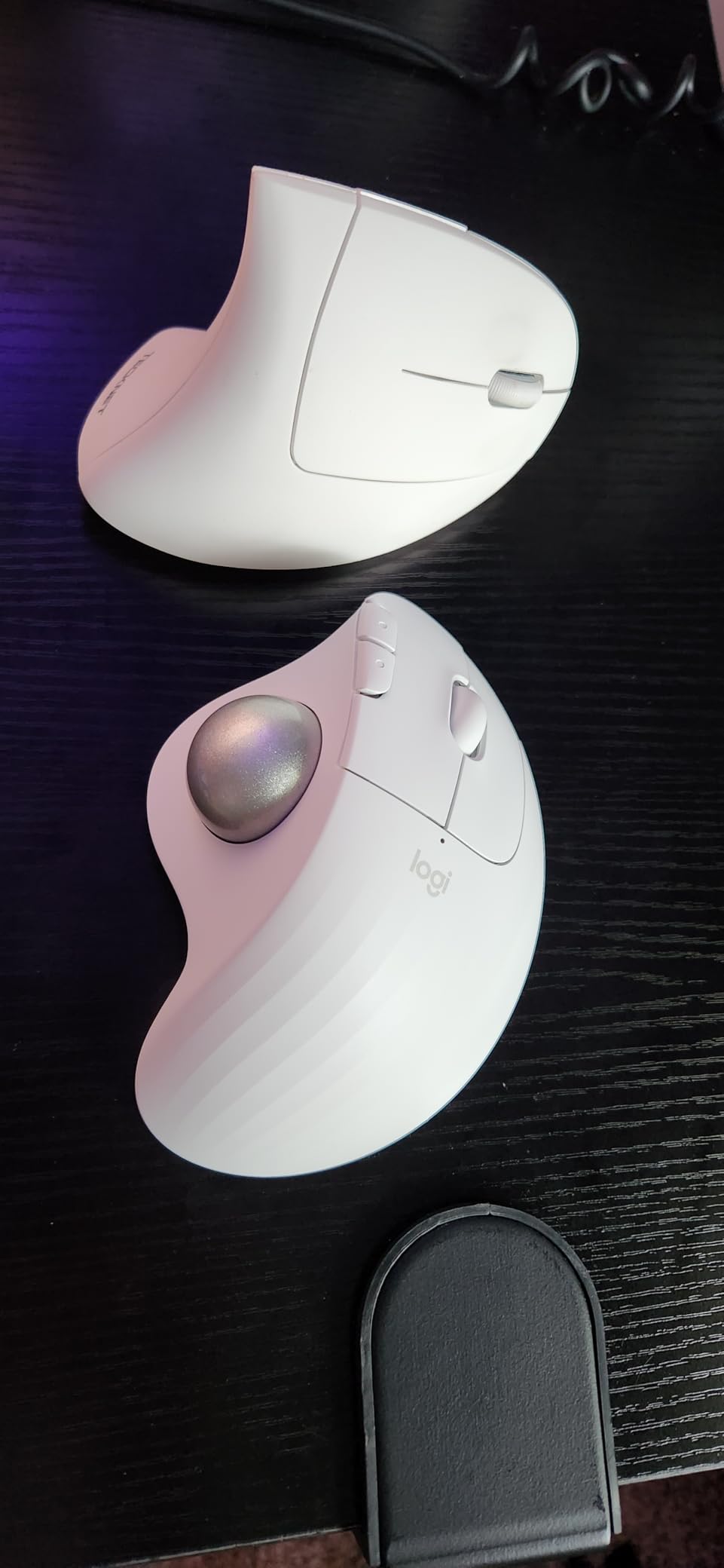
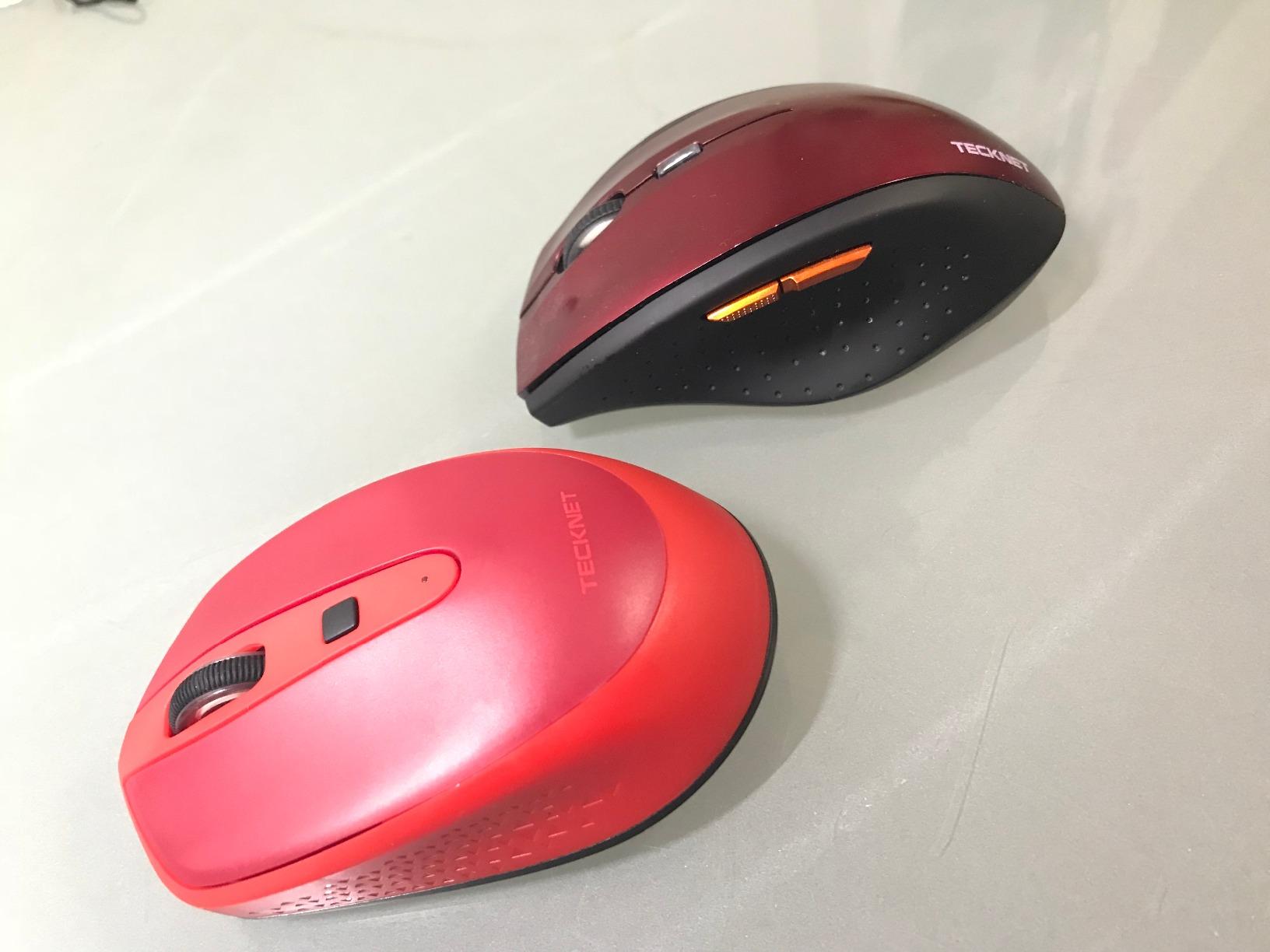
The TECKNET TK-MS023 gives large-handed users a more vertical posture without moving to a conventional vertical mouse. I found the 16-degree angle and broad body easier to settle into than a flatter thumb ball, especially during longer typing and browsing sessions.
It connects to three devices through Bluetooth and 2.4GHz wireless, and the five DPI options let me tune cursor speed for different monitors. The rechargeable 500mAh battery is convenient, while the quiet buttons help in an office or shared room.
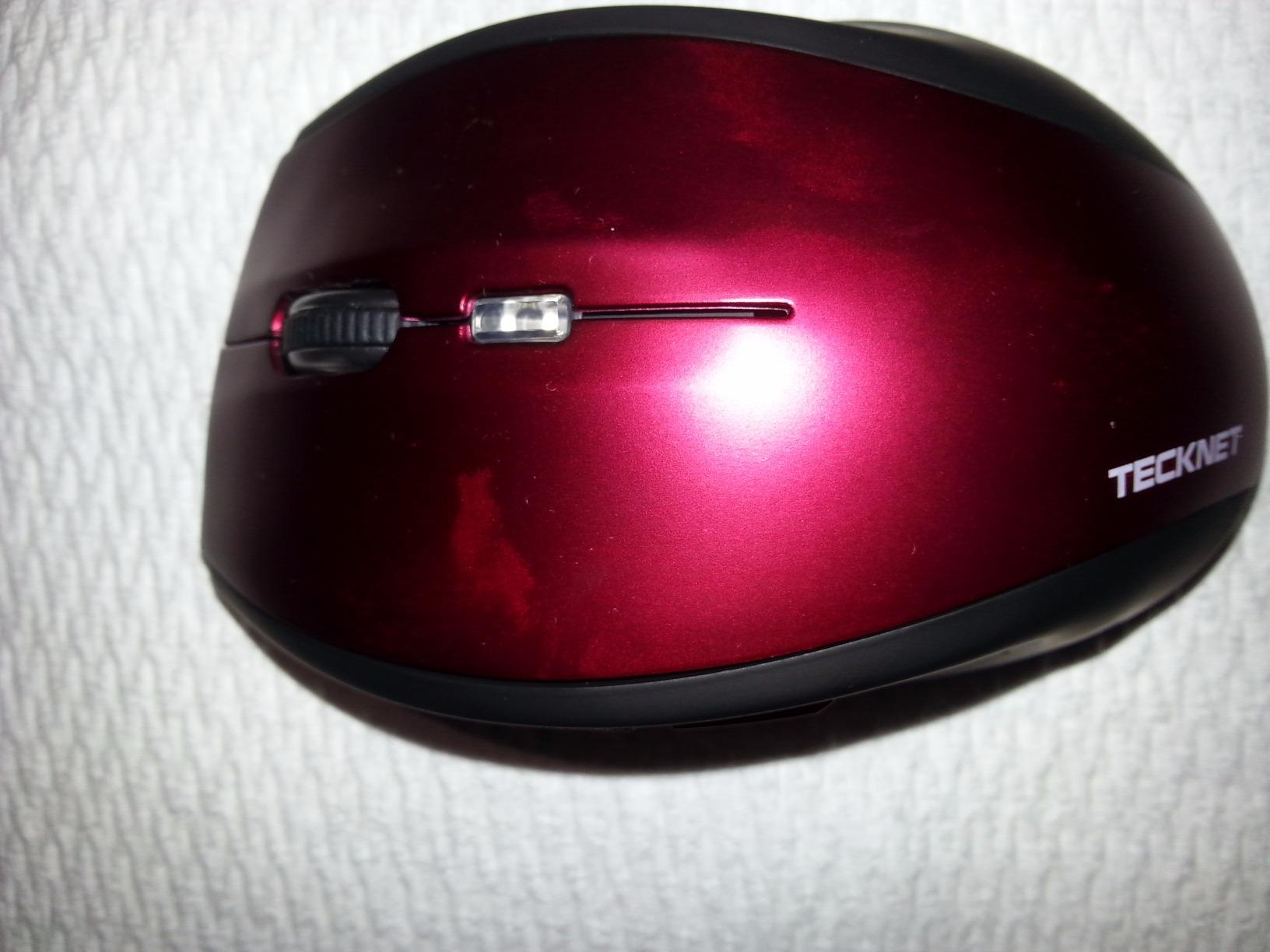
There is an adjustment period. A vertical angle changes how your thumb approaches the ball, so my first few sessions felt slower than expected. Once I slowed down and used the lower DPI settings, control became more precise and the ergonomic benefit became clearer.
The product data lists a 24-hour battery-life figure, but heavy use and RGB lighting can change the result. I would treat that specification as a reference point rather than a promise and keep the charging cable nearby if the mouse is your daily driver.
Who the TECKNET TK-MS023 is for
Choose it if you have larger hands, prefer a more upright forearm position, or want three-device support at a low cost. It is also worth considering for users who find flat thumb balls uncomfortable after several hours.
It is not the best fit for left-handed users or people who want a premium shell and extensive software customization. Small hands may find the body too generous.
What to know before buying
The 36-month warranty is reassuring for a budget-oriented device, but the learning curve is real. I would practice with ordinary tasks, lower the sensitivity initially, and avoid switching devices until thumb control feels repeatable.
For a large hand and a modest budget, this is one of the more interesting ergonomic shapes in the list. It is a work-first design, not a gaming-first one.
7. Kensington SlimBlade Pro Wireless Trackball — Best Premium Finger Control
Kensington SlimBlade™ Pro Wireless Trackball, Rechargeable Battery, Bluetooth 2.4GHz Connection Options (K72080WW)
55mm ball
Bluetooth, 2.4GHz and USB-C
Ambidextrous
Pros
- Large 55mm ball
- flexible connectivity
- precise dual sensors
- rechargeable battery
- KensingtonKonnect support
Cons
- High price
- twist-scroll cannot be disabled
- software permissions can be intrusive
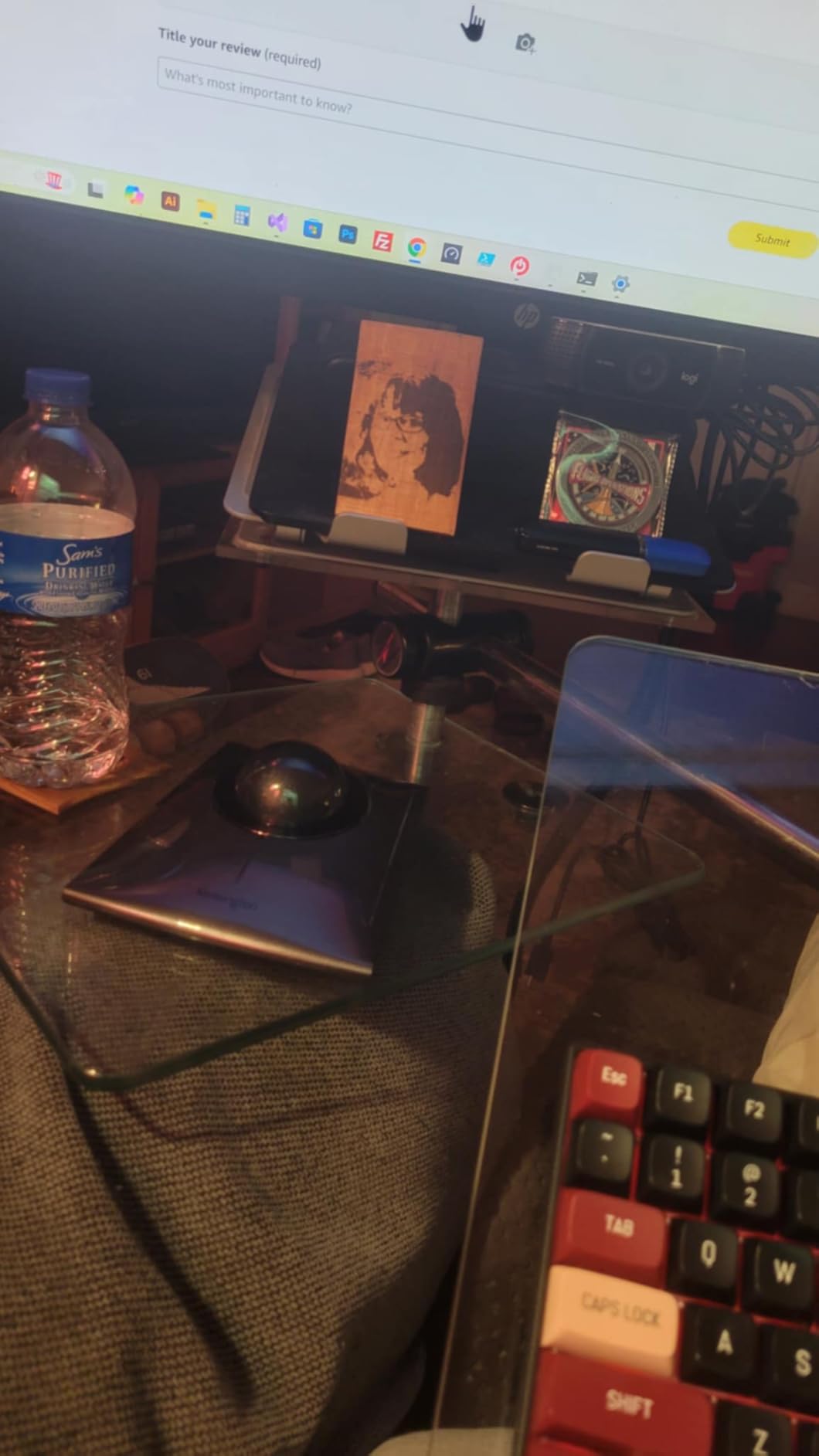
The SlimBlade Pro is Kensington’s wireless answer for people who prefer finger control. Its large 55mm ball gives my index finger plenty of room, and the dual-sensor tracking feels confident when I am moving between detailed editing and a multi-monitor desktop.
Bluetooth, 2.4GHz, and wired USB-C options make it easy to choose the connection that fits the day. The rechargeable battery lasts up to four months per charge, and the ambidextrous low-profile body avoids locking every user into a thumb-oriented design.
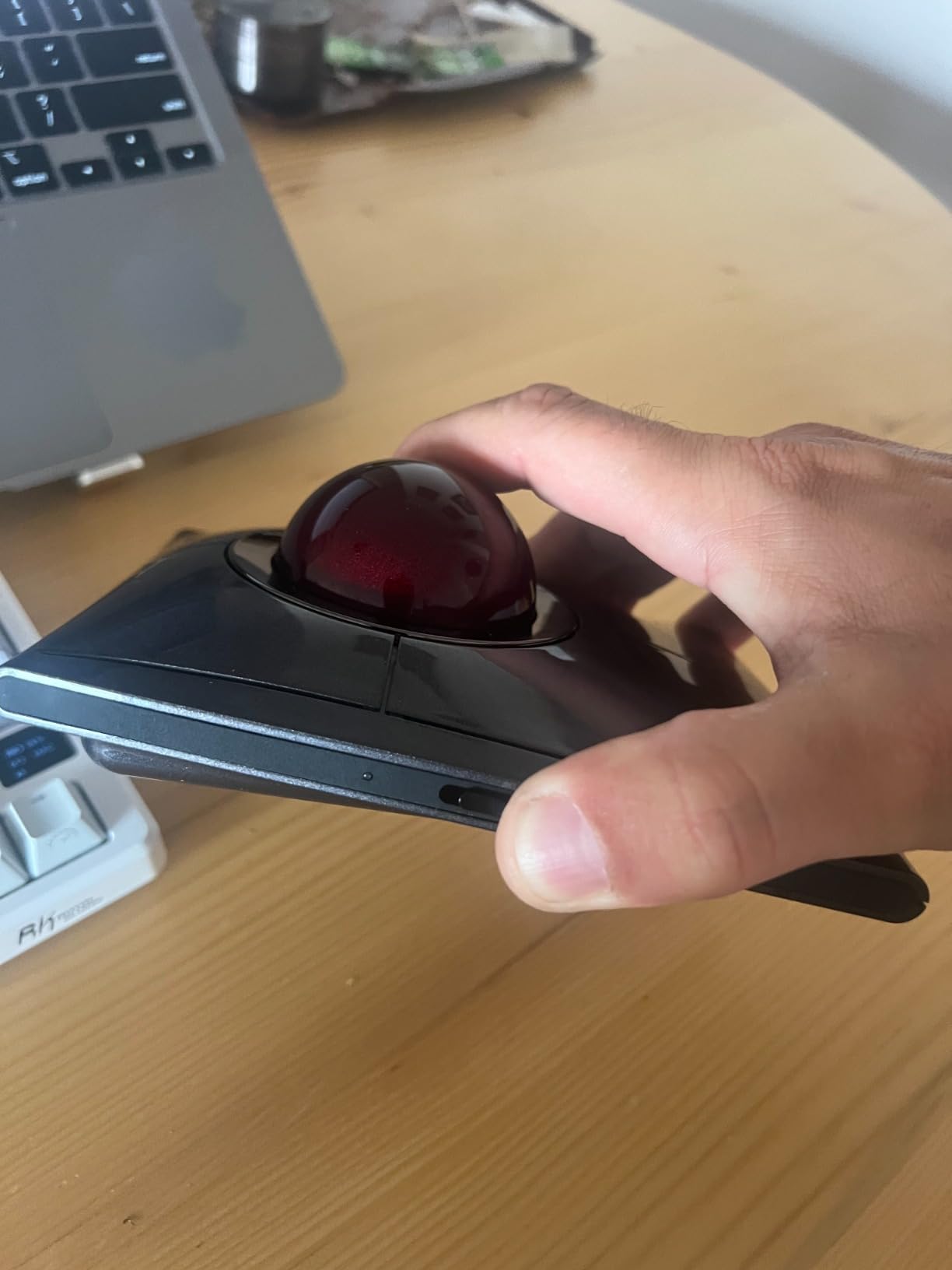
The button customization supports eight sets through KensingtonKonnect, which is useful for creative or technical workflows. I would still review the software permissions before installation, because some user feedback describes them as more involved than expected.
Twist scroll cannot be disabled, so it may feel less predictable if you prefer a traditional wheel. The high price is also hard to justify for someone who will use only basic browsing and office tasks.
Who the Kensington SlimBlade Pro is for
Choose it for premium finger control, flexible connection modes, and a large ball in a relatively low-profile shell. It fits both hands and works well for users who move between wireless and wired setups.
It is less suitable for a tight budget, users who dislike software-heavy customization, or anyone who wants to turn off twist scroll completely.
What to know before buying
Test the twist-scroll behavior before committing, especially if you spend hours in spreadsheets. It is one of the model’s defining features, but it is also the most common complaint in the review data.
I would keep the wired option available for a low-latency workstation session. The SlimBlade Pro is a premium choice with excellent control, but its software and scroll behavior demand more attention than the simpler models.
8. Kensington Orbit Trackball with Scroll Ring — Best Simple Wired Pick
Kensington Orbit Trackball Mouse with Scroll Ring (K72337US), 4 1/2X5 1/2X2″
40mm ball
Scroll ring
Wired USB
Pros
- Optical tracking
- ambidextrous design
- detachable wrist rest
- five-year warranty
- no battery
Cons
- Only two buttons
- ring may squeak
- debris can collect under ball
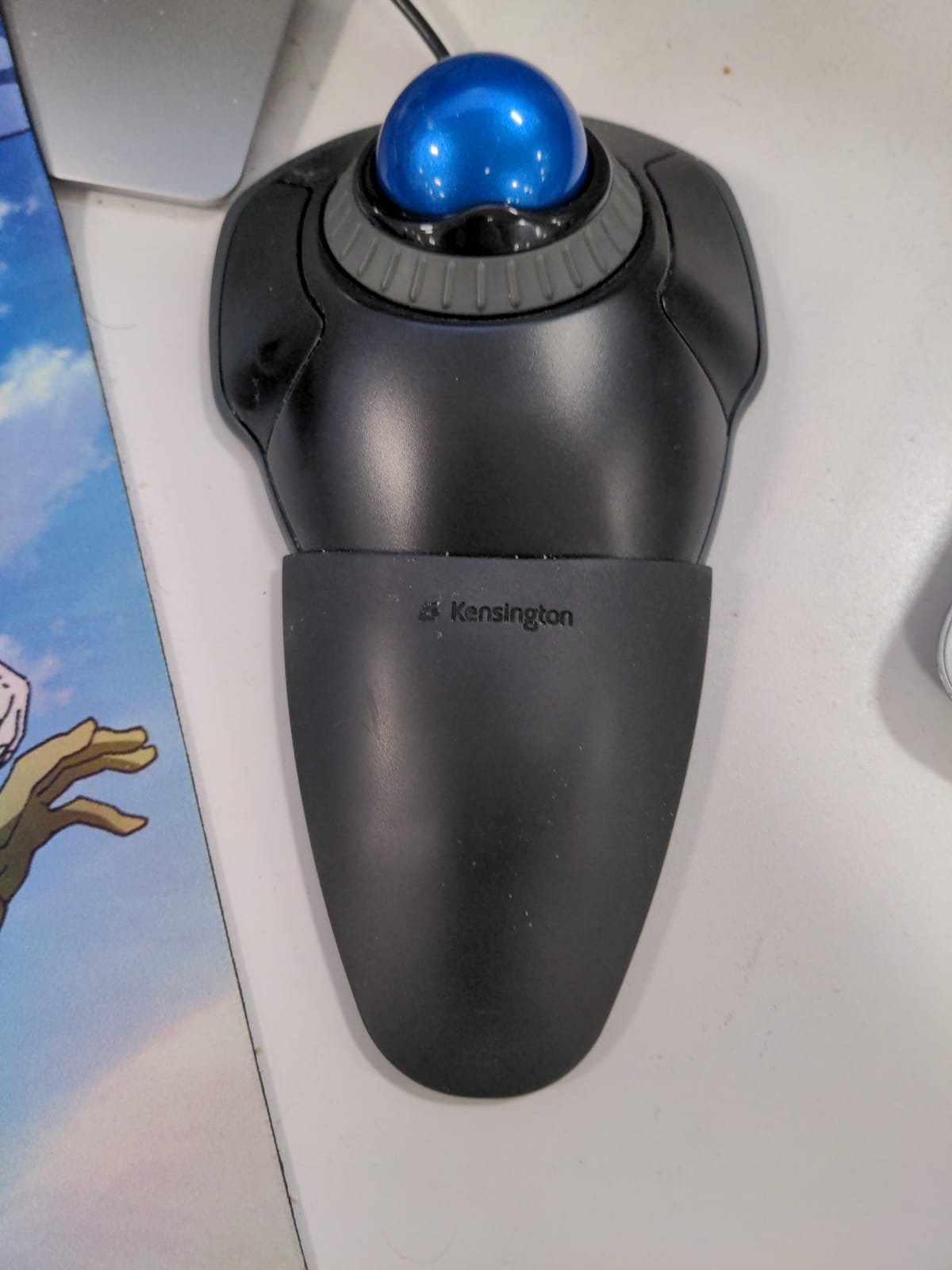
The Kensington Orbit is a classic because it gets the fundamentals right. I found its 40mm ball easy to guide, the optical tracking predictable, and the scroll ring more comfortable for long pages than repeatedly reaching for a small wheel.
The ambidextrous shape and detachable wrist rest make it a friendly wired option for both right- and left-handed users. KensingtonKonnect adds customization, and the five-year warranty is unusually reassuring for a device that may stay on one desk for years.
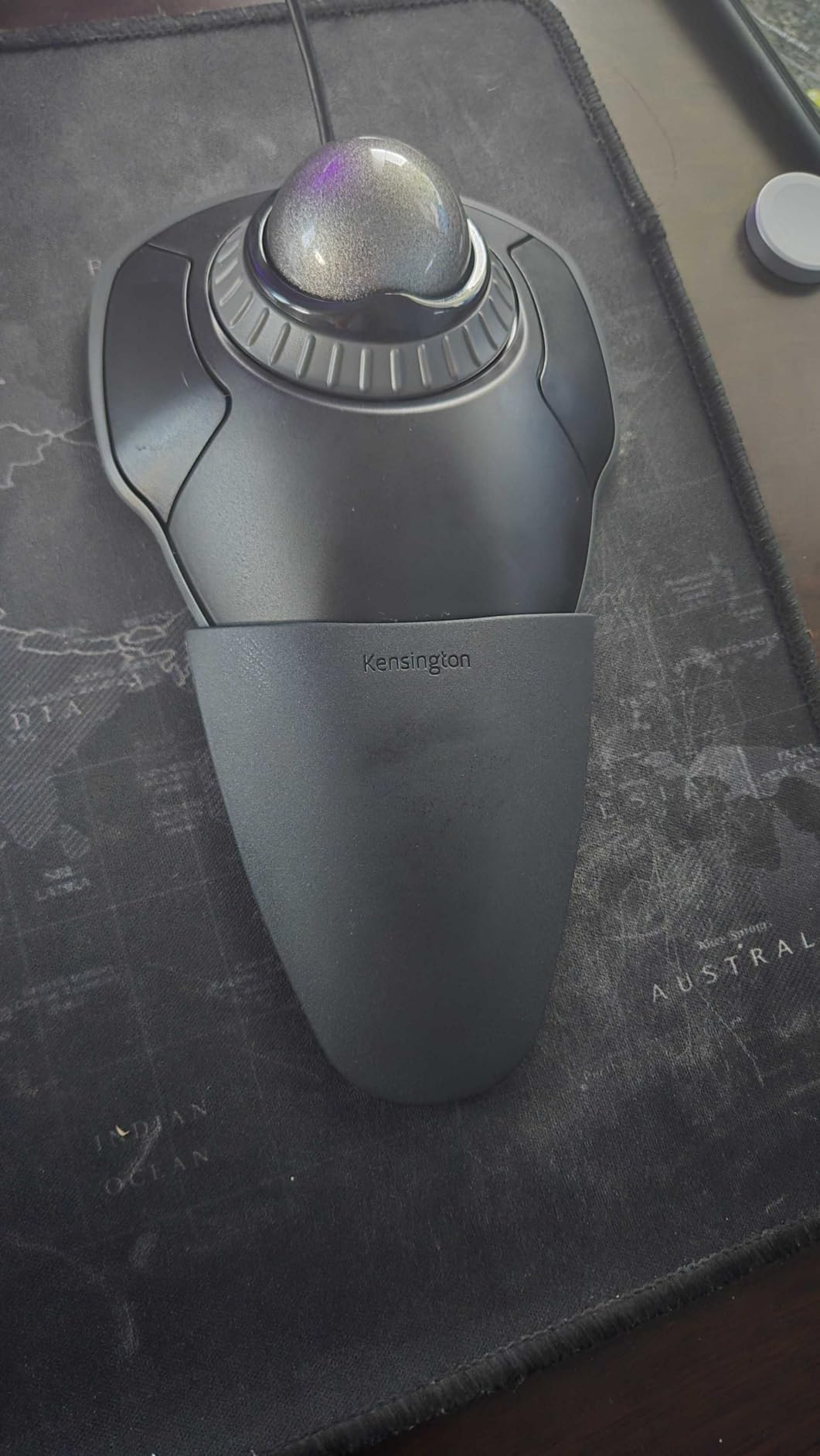
There are only two buttons, so the Orbit is not built for a shortcut-heavy workflow. The area under the ball can collect debris, and the scroll ring may develop a squeak over time, both of which are good reasons to keep the maintenance habit simple.
Its popularity is not accidental. Long-term user feedback repeatedly points to comfort, reliability, and a useful scroll ring, even as newer wireless models add more features.
Who the Kensington Orbit is for
Choose it for a stationary desk, simple tasks, and a dependable wired connection. It is a particularly good option for a user who likes a scroll ring and does not need many programmable buttons.
It is less suitable for travel, couch use, or a complex shortcut setup. Users who need wireless freedom should compare the SlimBlade Pro.
What to know before buying
Clean the ball and socket on a schedule rather than waiting for the cursor to drift. I also recommend testing the ring in person if you are sensitive to tactile noise, since long-term ring feel varies.
The Orbit is a dependable classic rather than a cutting-edge feature package. For many office users, that is exactly the point.
9. Logitech Trackman Marble Trackball Mouse — Best Ambidextrous Classic
Logitech Trackman Marble Trackball Mouse – Wired USB Ergonomic Mouse for Computers, with 4 Programmable Buttons, Dark Gray
Ambidextrous shell
Four programmable buttons
Plug and play
Pros
- Long-running design
- ambidextrous shape
- simple setup
- four programmable buttons
- durable build
Cons
- No scroll wheel
- wired only
- limited stock
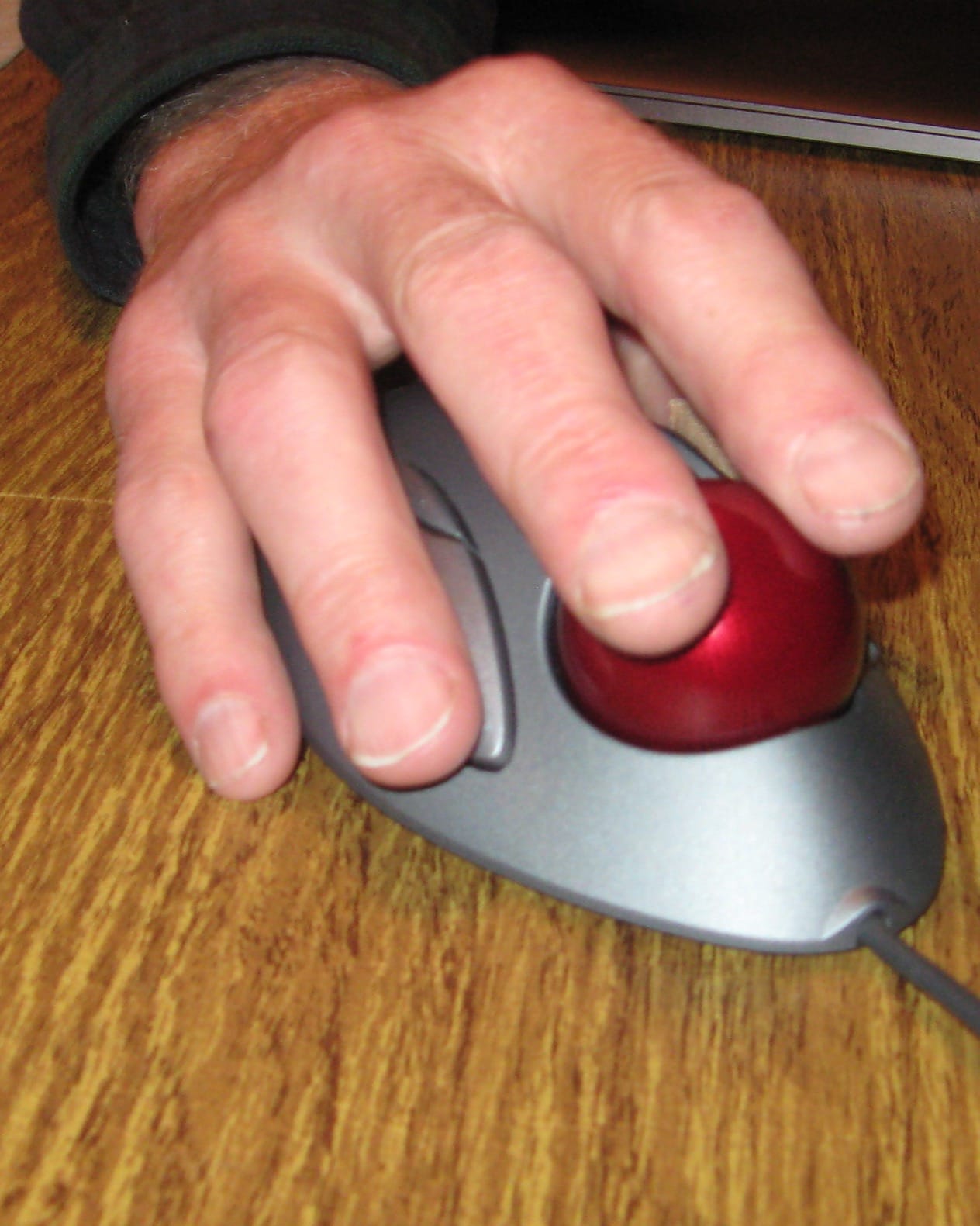
The Trackman Marble is the most purely traditional option in this group. I plug it in, move the ball with my fingers, and do not need to think about pairing, charging, or a scroll wheel disappearing from the setup.
Its ambidextrous shell works for either hand, and the large Back and Forward buttons are easier to reach than the tiny controls on many compact mice. The four programmable buttons and plug-and-play setup make it approachable even for someone who has never used a trackball.
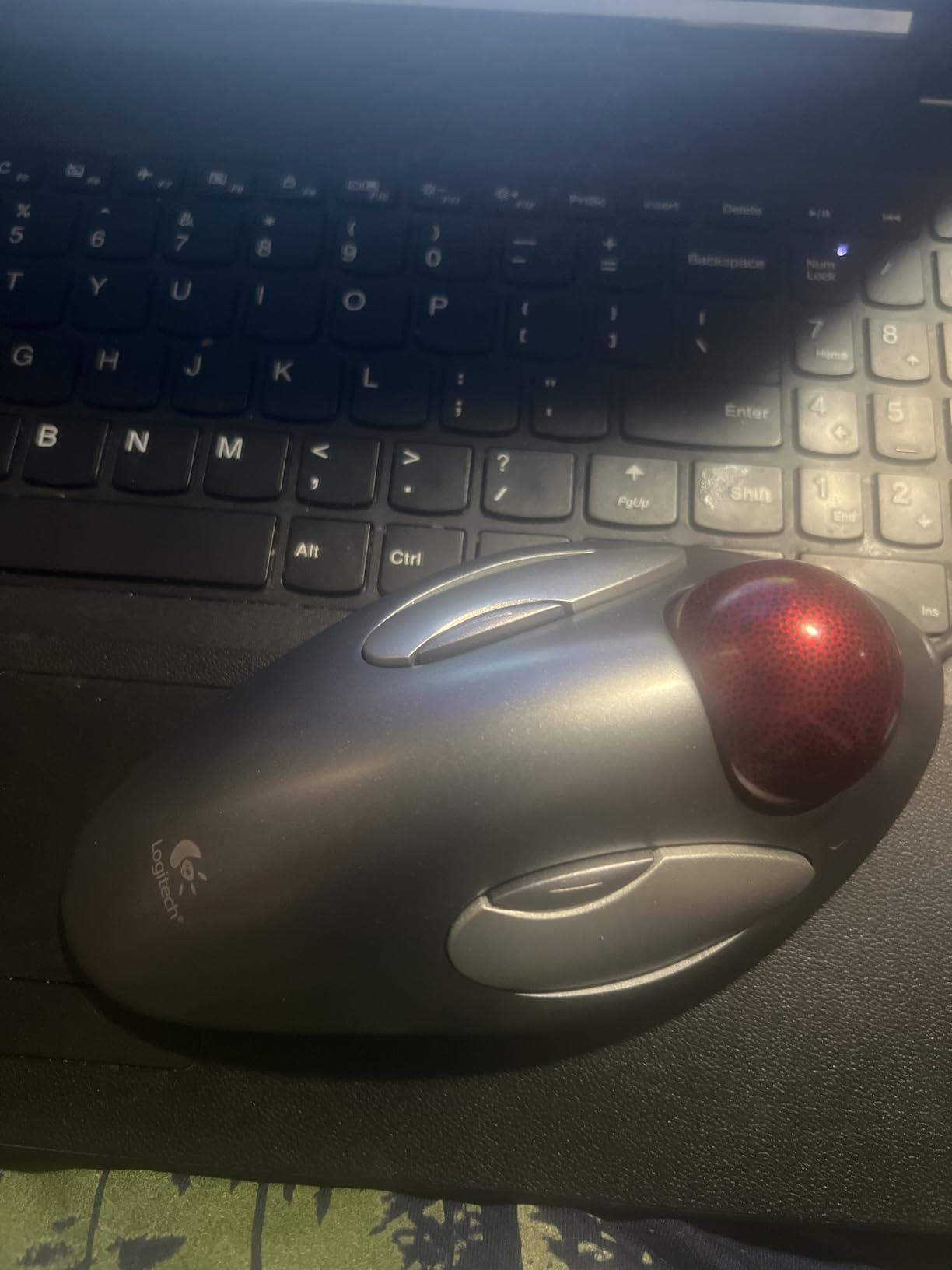
The absence of a wheel is the central trade-off. Scrolling long pages takes more thought, and the wired design keeps the mouse tethered to a desk. Limited stock also makes it a less predictable purchase than a widely available current model.
Despite those compromises, the 4.6 rating and 12k+ review history show how durable and well liked this design has become. It is a reminder that a good trackball does not need constant reinvention.
Who the Logitech Trackman Marble is for
Choose it for a no-fuss, ambidextrous finger-operated mouse with physical navigation buttons. It is well suited to office work, legacy setups, and users who prefer a wired connection that never needs a battery.
It is not right for a traveler who needs wireless operation or a gamer who expects a dedicated scroll wheel and modern low-latency features.
What to know before buying
Give yourself time to learn the scrolling rhythm. I would assign the Back and Forward buttons first, then decide whether the missing wheel is an inconvenience or a genuine reason to choose another model.
The Trackman Marble is a classic because its simplicity is the product. If you can accept the cable and the wheel-free design, it remains a strong long-term trackball.
10. ELECOM Huge Trackball Mouse — Best Feature-Rich Finger Ball
ELECOM Huge Trackball Mouse, 2.4GHz Wireless USB, Index Finger Control, Customizable 8-Button, Optical Sensor, Large Soft Palm Rest, 52mm Ball, Window PC Mac Computer Laptop (M-HT1DRBK)
52mm ball
Eight buttons
325-day battery
Pros
- Large 52mm ball
- eight customizable buttons
- soft palm rest
- long battery life
- optical tracking
Cons
- Right-hand only
- steep learning curve
- no Bluetooth
- software can be CPU intensive
The ELECOM Huge is for people who want a large finger-operated ball and a lot of control over buttons. Its 52mm ball, eight-button layout, and soft palm rest create a generous workstation experience that I found more substantial than the smaller Orbit.
Three DPI levels, a 10-meter wireless range, and a claimed battery life of 325 days make it a serious productivity option. The ball pops out for maintenance, and the hardware gives MouseAssistant5 plenty of inputs to customize.
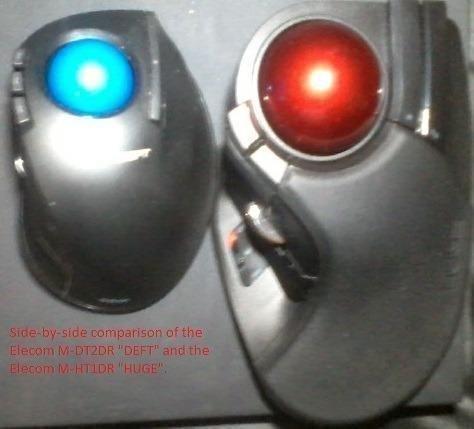
There is a real learning curve for index-finger control, especially if you are switching from a thumb ball. The software can be CPU intensive, the body is right-hand only, and the 2.4GHz connection means there is no Bluetooth convenience.
Those caveats are significant, but the hardware itself is capable. I would choose it when the large ball and button map solve a real workflow need, not simply because more buttons look better on a desk.
Who the ELECOM Huge is for
Choose it for finger control, large hands, long battery life, and extensive shortcut customization. It is a good fit for a right-handed power user who wants a full palm rest and a stable wireless connection.
It is not ideal for left-handed users, small desks, or buyers who want Bluetooth and lightweight software. Beginners may find a simpler Kensington model easier to learn.
What to know before buying
Start with the lower DPI and use the extra buttons for frequent actions such as copy, paste, and window switching. I would not install every feature at once, because the software can demand more system attention than a basic mouse.
The ELECOM Huge rewards patience. Once finger control becomes familiar, the large ball, soft rest, and eight-button map make it one of the most flexible finger-operated choices here.
How to Choose the Best Trackball Mouse
Thumb control is easier for many beginners
Thumb-operated trackballs keep the index finger on the buttons and often feel closer to a standard mouse. The Logitech MX Ergo S, M575S, Nulea M501, ProtoArc EM01 NL, and TECKNET are good examples of this approach, with different levels of tilt, software, and battery design.
I would start with a thumb ball if you want the gentlest transition. Your thumb may tire while you learn, so begin with shorter sessions, lower DPI, and a relaxed grip rather than trying to match a regular mouse’s speed immediately.
Finger control offers finer long-range movement
Finger-operated balls use the index or middle fingers and often provide a larger ball surface for precision. Kensington’s Expert Mouse, SlimBlade Pro, Orbit, and Trackman Marble, plus the ELECOM Huge, are the strongest choices in this group.
The trade-off is coordination. I found finger control slower at first, but more capable for exact cursor placement once my movement became consistent. It is worth trying both styles if your work includes CAD, music production, video editing, or a multi-monitor layout.
Match the shape to your hand and desk
Trackball mice do not move across the desk, but they still need room for your hand, forearm, and occasional ball removal. Large bodies such as the Expert Mouse and ELECOM Huge suit a generous surface, while the compact M575S is easier to fit beside a keyboard.
Hand orientation matters just as much as size. Kensington’s ambidextrous models are the safer choice for a shared or left-handed setup, while most Logitech, Nulea, ProtoArc, TECKNET, and ELECOM options are right-handed designs.
Choose wired or wireless based on your routine
Wired models such as the Expert Mouse, Orbit, and Trackman Marble never need charging and are dependable for a fixed workstation. Wireless models are better for moving between devices or clearing cable clutter, but battery life, receiver storage, and pairing convenience become part of the decision.
For most desks, I would choose wireless when multi-device support matters and wired when absolute simplicity matters. The MX Ergo S, SlimBlade Pro, and M501 offer the most flexible wireless feature sets, while Kensington’s wired balls remain compelling for low-maintenance precision.
Check scrolling, software, and maintenance
Scroll rings are excellent for long documents, but their tactile behavior can wear or become noisy. Traditional wheels are easier to disable mentally, while a twist-scroll system may be a feature or a nuisance depending on your workflow.
Logi Options+ and KensingtonKonnect can make programmable buttons much more useful, but software quality and permissions deserve attention. I also clean the ball and sensor area regularly, because dust buildup can make a healthy trackball feel inaccurate long before the hardware is actually failing.
Frequently Asked Questions
Are trackball mice better for you?
A trackball mouse can be better for you if repeated wrist movement contributes to discomfort, because you move the ball instead of sliding the whole device. It is not automatically safer or more comfortable, and the right thumb or finger style, fit, and adjustment period still matter.
What is the best trackball mouse in 2026?
The Logitech MX Ergo S is the best overall choice for most right-handed users because it combines a comfortable tilt, precise optical tracking, USB-C charging, and dual wireless connectivity. The Nulea M501 is the value choice, and the Kensington Expert Mouse is the precision pick for finger control.
What are the disadvantages of using a trackball mouse?
The main disadvantages are a learning curve, possible thumb or finger fatigue, a stationary footprint, and regular cleaning of the ball and sensor socket. Wireless models also require charging or batteries, while some models have limited buttons or less polished software.
What happened to trackball mice?
Trackball mice became less common as optical mice became cheaper and more familiar, but they never disappeared. A dedicated community continues to value them for stationary precision, small desks, ambidextrous designs, and reduced wrist movement.
Our Final Verdict
The best trackball mice solve different problems, which is why the right choice depends on your hand and workflow. The Logitech MX Ergo S is my overall recommendation for a right-handed office user, the M501 is the best value, and the Kensington Expert Mouse is my pick for finger-operated precision.
Before buying, test thumb versus finger control, check whether the model fits your hand, and decide whether wireless convenience matters more than a cable. In 2026, start with the MX Ergo S if you want the most balanced experience, then choose a Kensington model if precise finger movement and long-term wired reliability matter most.